TABLE OF CONTENTS
- Store Setup Guide
- Product Setup Guide
- Inventory Management Guide
- Order Management Guide
- 1. Accessing the Orders Section
- 2. Viewing Live Orders
- 3. Handling Order Actions
- 4. Viewing Order Details
- 5.Tracking and Managing Orders
- 6.Completing an Order
- 1. Store Settings
- 2. Delivery Settings
- 3. Future Order Settings
- 4. Tax Settings
- 5. Sync Options
- 6. Online Store Theme
- 7. Discounts Management
- 8. Email Templates
- Managing Pickup Locations in OneHub POS
- Gift Cards Management Guide
Welcome to the OneHubPOS E-Shop User Guide, your comprehensive resource for navigating and managing your online store with ease. This guide will walk you through essential features such as setting up your store, managing products, processing orders, tracking inventory, and utilizing advanced settings to enhance your business operations.
Accessing the Online Store
1. Visit the Website:
Open your web browser and navigate to the online store's website.
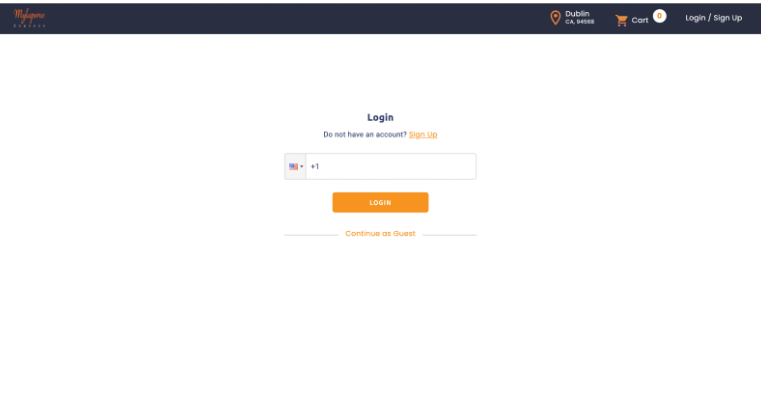
2. Login or Signup:
On the login page:
Existing Users: Enter your phone number in the provided field and click the Login button.
New Users: Click on the Sign-Up link to create an account.
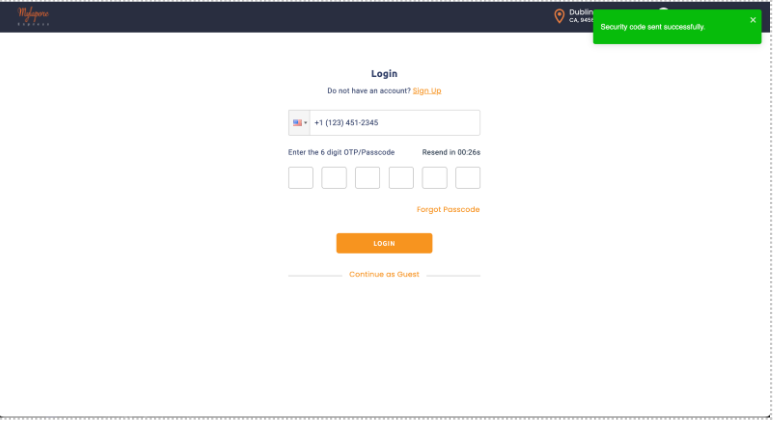
3. Enter OTP/Passcode:
A 6-digit OTP (One-Time Password) will be sent to your registered mobile number.
Enter the OTP in the designated fields and click Login.
If the OTP is not received, use the Resend button to generate a new OTP.
4. Guest Access (Optional):
If you do not wish to log in, click on Continue as Guest for limited access to the store.
Dashboard Overview
The dashboard provides a snapshot of your store's activity and key analytics. Here's a breakdown:
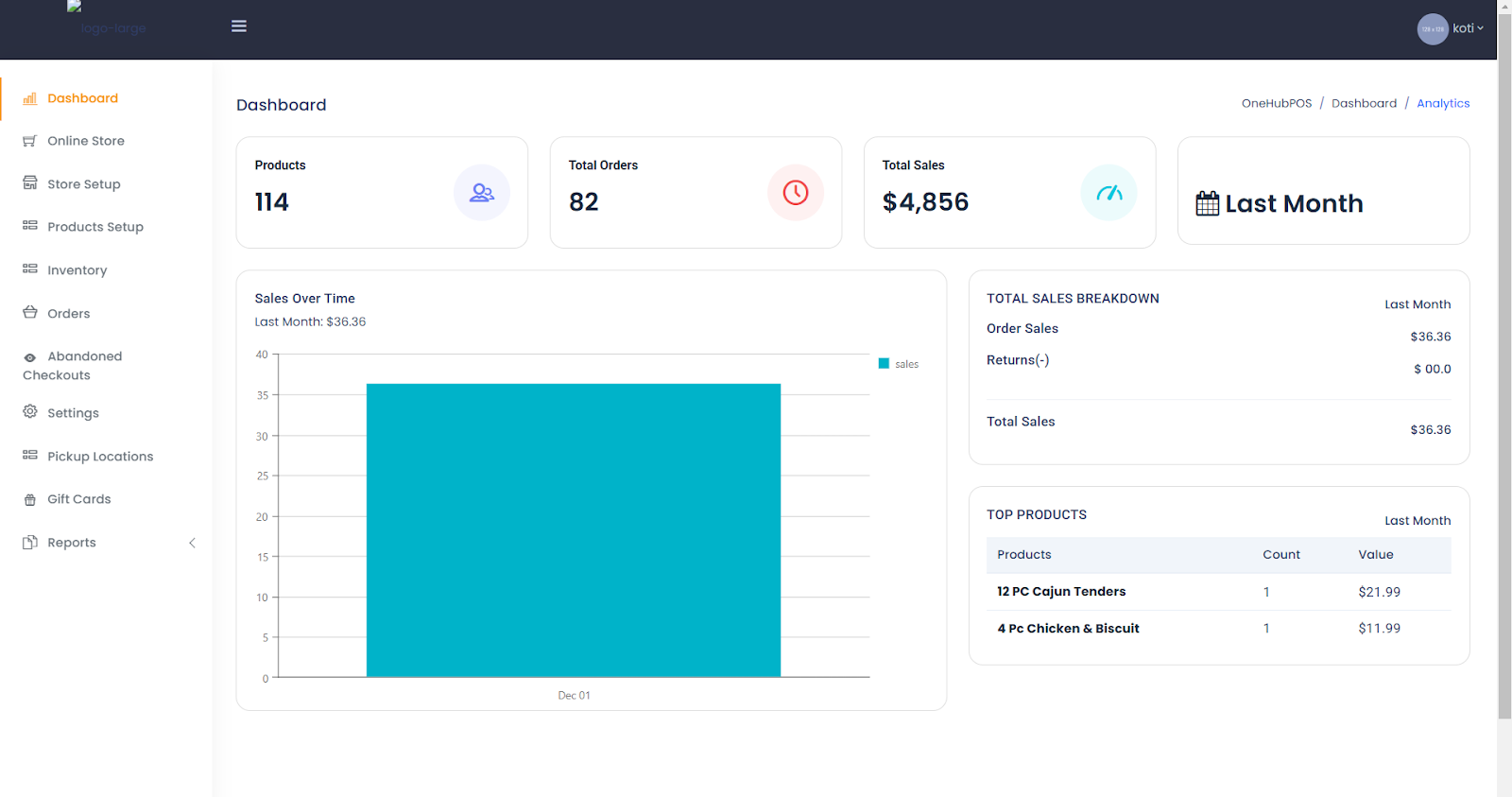
1. Main Sections:
Products: Displays the total number of products listed in the store.
Total Orders: Shows the number of orders placed.
Total Sales: Summarizes the revenue generated.
2. Sales Over Time:
Visual representation of sales over a specific period (e.g., monthly sales trends).
3. Top Products:
Lists the best-selling products, including item counts and sales values.
Online Ordering
1.Accessing the Online Store
Visit the website of the online store.
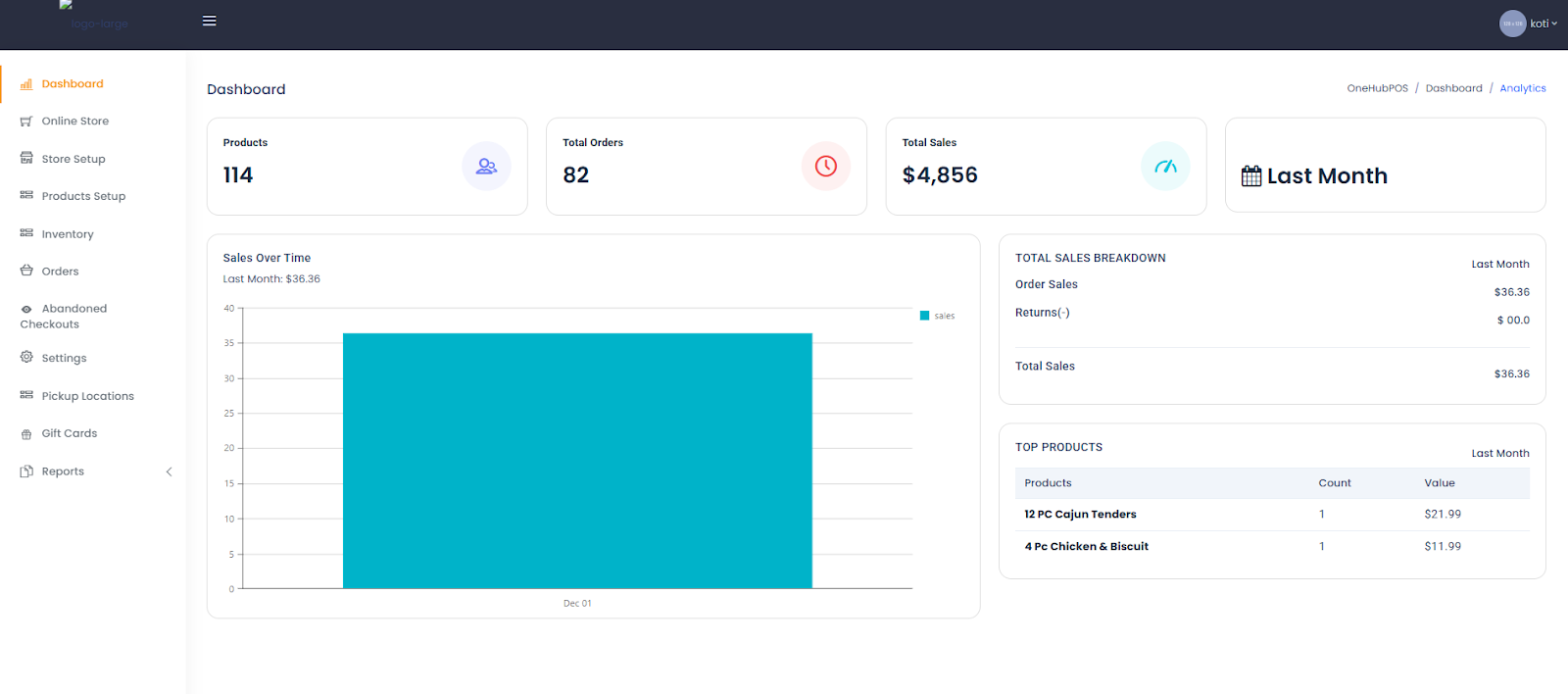
Click on the “Online Store” button to begin the ordering process.
You will be directed to the Online Store.
2: Choosing Order Type
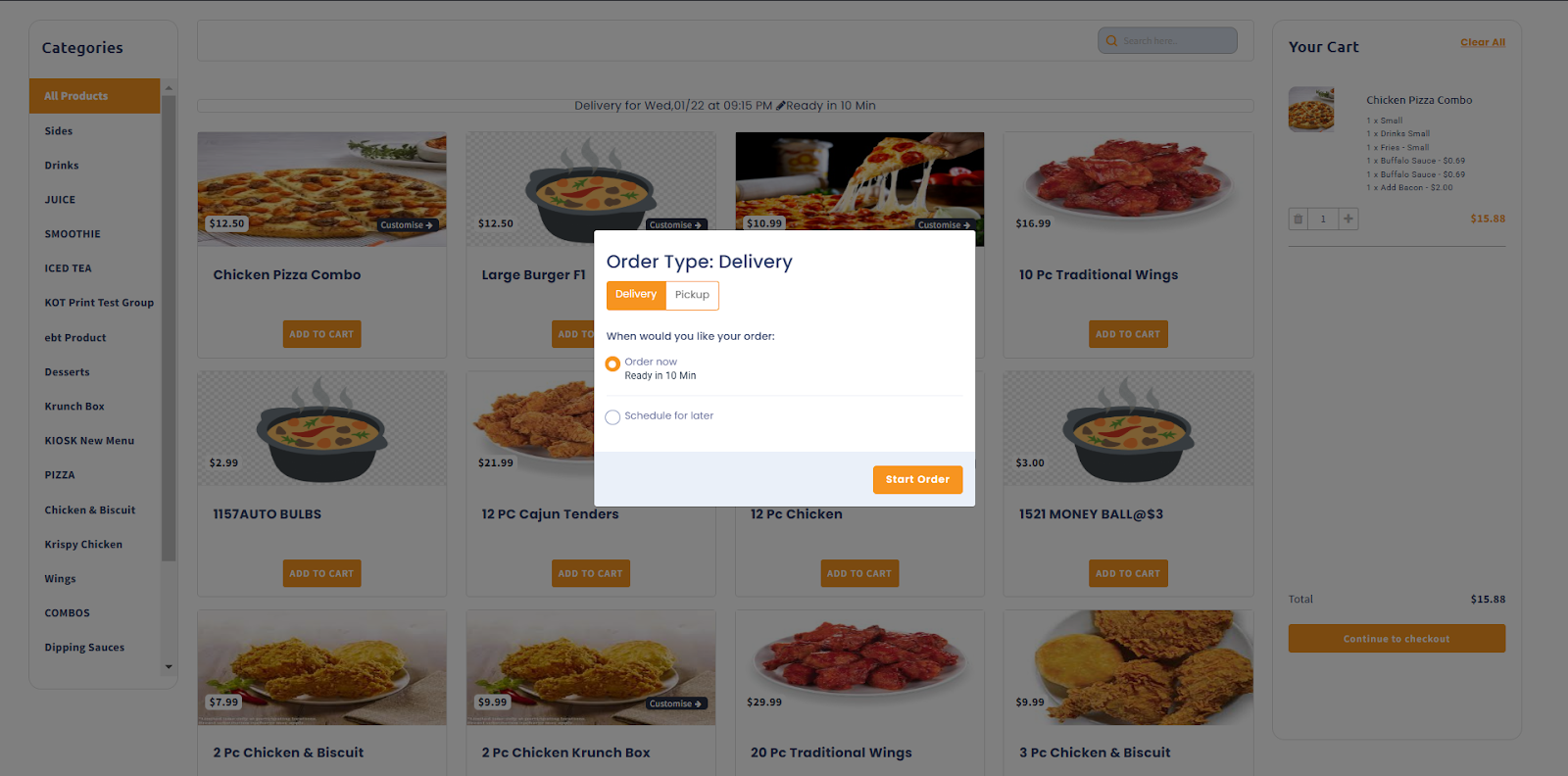
A pop-up will appear to select order type:
Delivery: Choose this option if you want home delivery.
Pickup: Select this if you prefer to pick up the order from the store.
Choose the preferred time:
Order Now: Immediate processing.
Schedule for Later: Set a future date and time.
Click “Start Order” to proceed.
3.Browsing Products and Adding to Cart
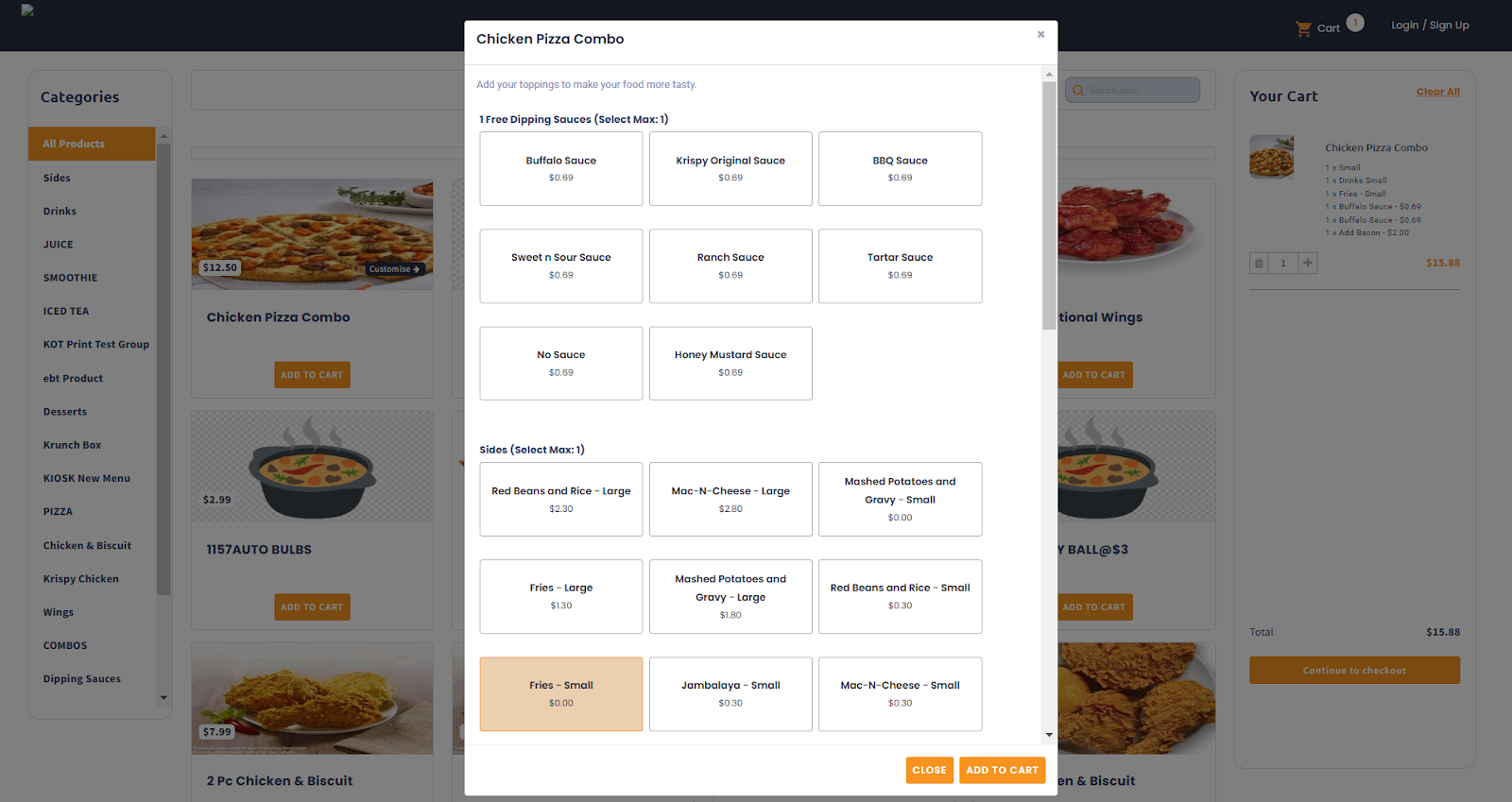
In the online store,you will see the product categories listed on the left sidebar.
Browse through the available products and click “Add to Cart” for the desired items.
If customization is available, click “Customize” to select preferences (e.g., sauces, sides).
Once satisfied, click “Add to Cart” to finalize your selection.
4.Reviewing Your Cart
The cart summary is displayed on the right side of the screen.
Review the items, quantities, and prices.
Click “Continue to Checkout” to proceed.
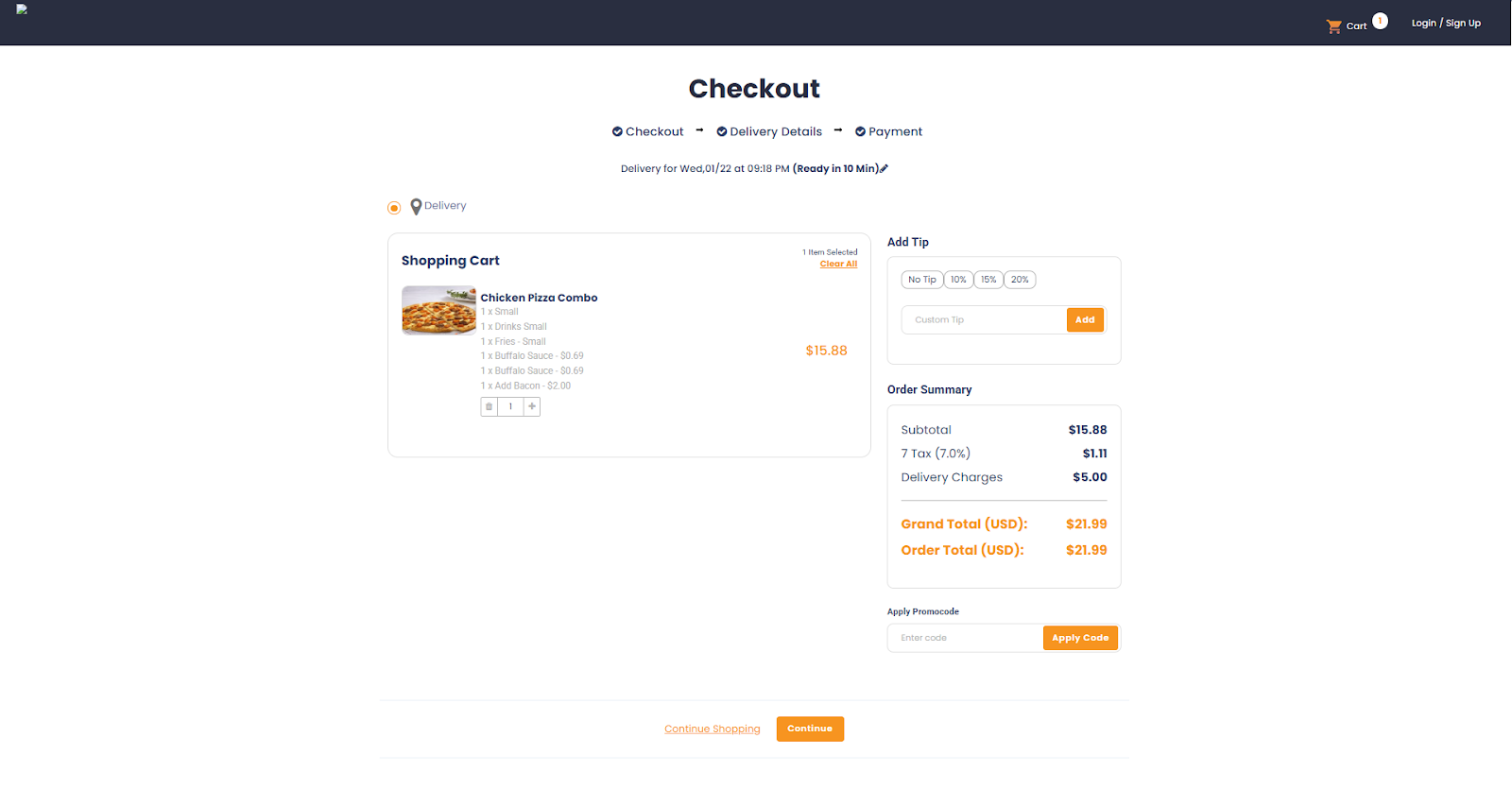
5.Checkout Process
On the checkout page, verify your selected order type (Delivery/Pickup).
Add any special instructions if needed.
The order summary will display:
Subtotal
Tax
Delivery charges (if applicable)
Total amount payable
Click “Continue” to proceed to the delivery details section.
6. Entering Delivery Details

Fill in the required personal details such as:
First Name
Last Name
Email
Mobile Number
Enter the delivery address, including:
Address Line, City, State, Zipcode, and Country
Provide any additional delivery instructions if needed.
If billing address is the same as delivery address, check the appropriate box.
Click “Continue to Payment” to proceed.
7.Making Payment
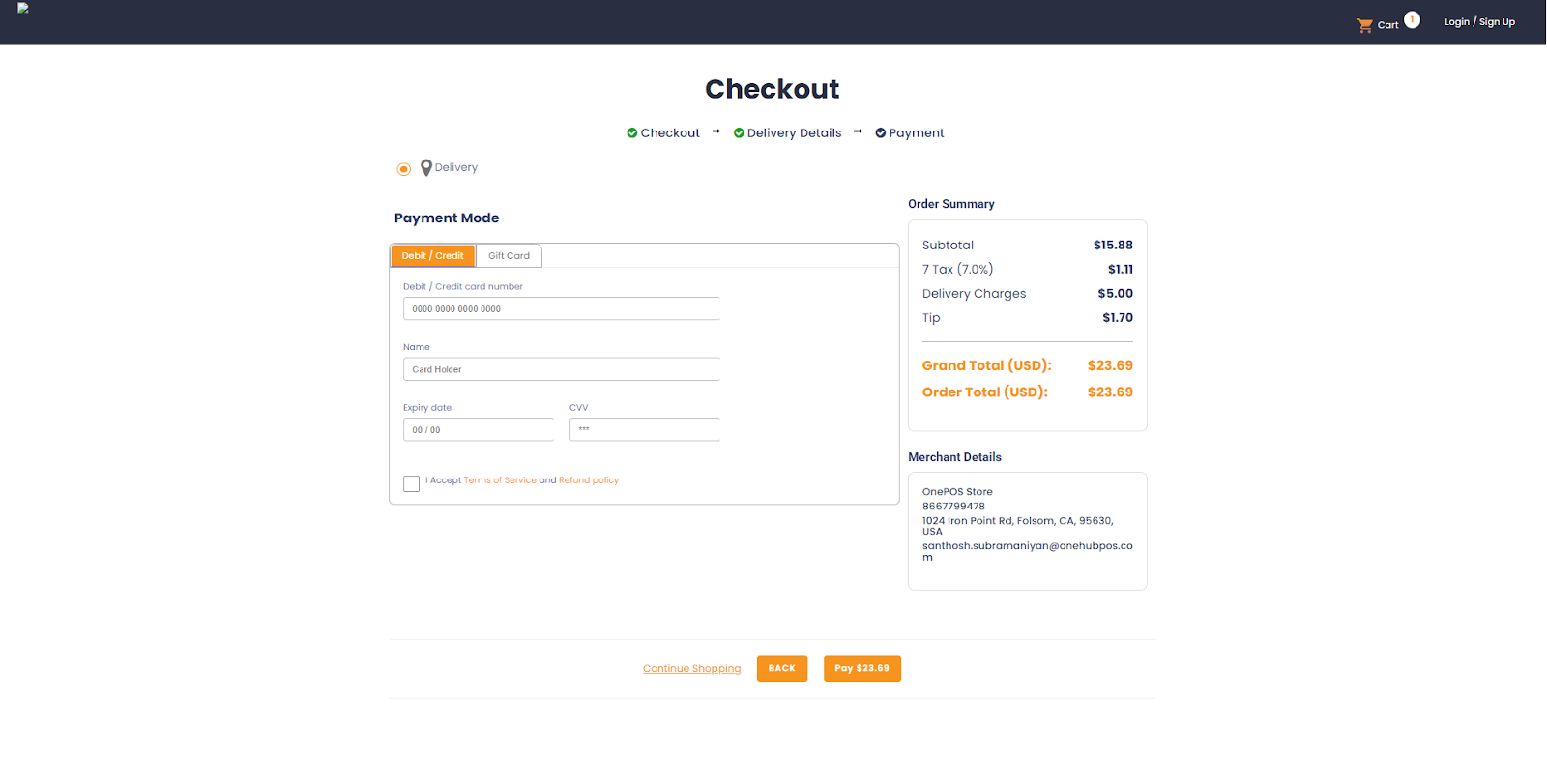
Choose a payment method:
Debit/Credit Card: Enter your card details (Card number, Name, Expiry date, CVV).
Gift Card: If applicable, enter the gift card code.
Accept the terms and conditions by checking the box.
Click “Pay” to finalize your order.
8. Order Confirmation
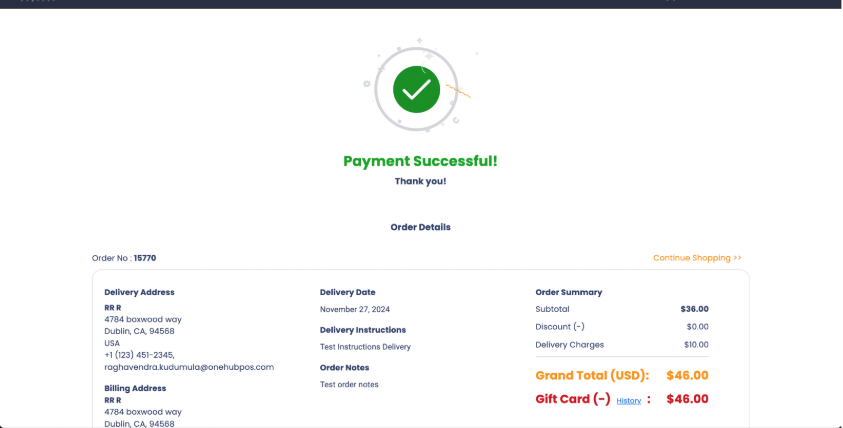
Upon successful payment, you will see a confirmation page with:
Order number
Delivery address and date
Order summary (subtotal, tax, discount, total amount)
You can track the order or continue shopping.
Store Setup Guide
Setting up your store correctly is crucial for ensuring smooth operations and an efficient customer experience. Follow this step-by-step guide to configure your store details.
1.Accessing Store Setup
Log in to your store dashboard.
Navigate to the left-side menu and click on “Store Setup”.
2.Entering Store Information
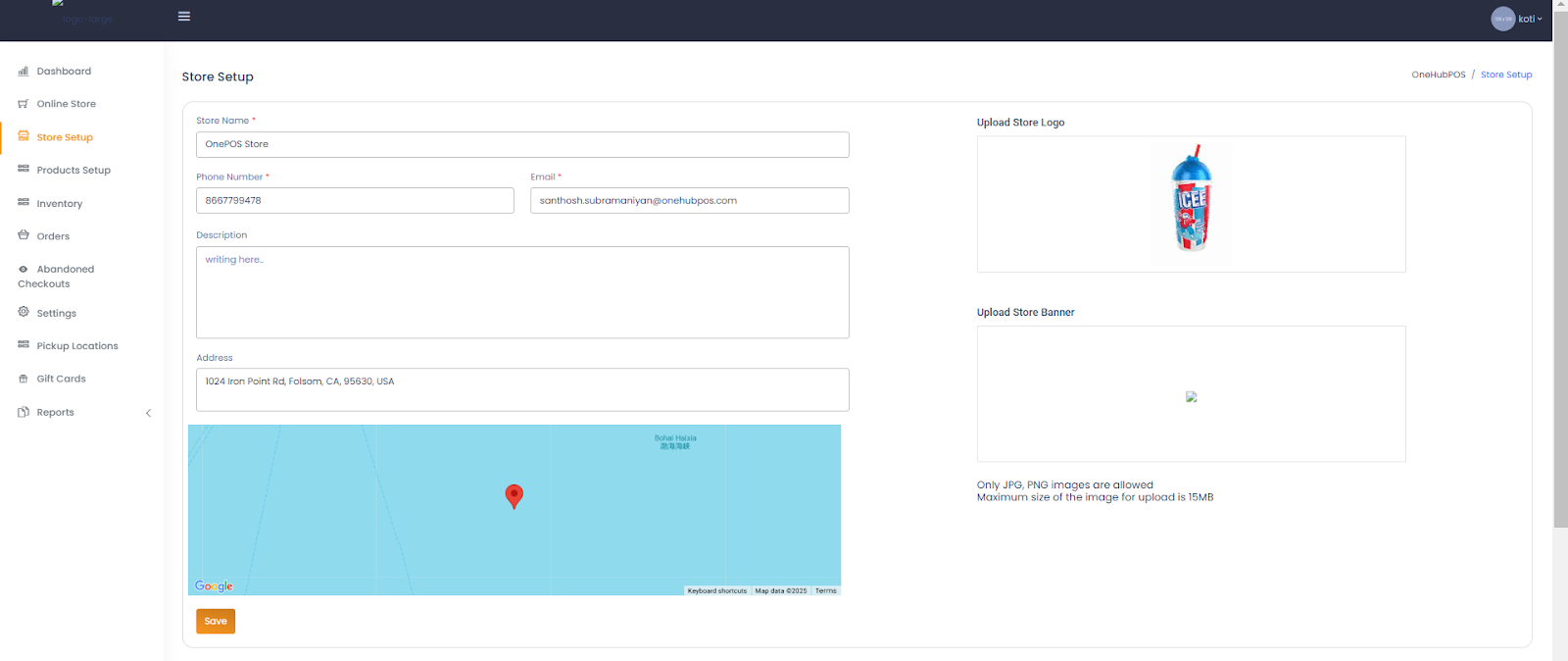
Fill in the required details in the provided fields:
Store Name:
Enter your store's name (e.g., "OnePOS Store").
Phone Number:
Provide the store's contact number for customer inquiries.
Email:
Enter your store's official email address for correspondence and notifications.
Description:
Write a brief description of your store, highlighting key services or products.
Address:
Enter the complete physical address of your store.
A Google map will display the location for accuracy.
Click “Save” to store the entered details.
3.Uploading Store Branding Elements
You can personalize your store by uploading images:
Upload Store Logo:
Click the image placeholder to upload your store’s logo (Only JPG, PNG files allowed, up to 15MB).
Ensure that your logo is of high quality for better visibility.
Upload Store Banner:
Add an attractive store banner to showcase promotions or branding.
Click “Save” to apply the changes.
4.Setting Website & Social Media URLs

Enhance your store's online presence by adding your website and social media links:
Website URL: Enter your store's official website link.
Facebook, Twitter, YouTube, Pinterest, Instagram: Add links to your store’s social media pages to engage with customers.
Click “Save” to update the details.
5.Configuring Store Operating Hours
Define your store's working hours to inform customers when you're open for business:
Select Timezone:
Choose the correct timezone from the dropdown list.
Set Operation Hours for Each Day:
Select the opening and closing times for each day of the week.
To add multiple time slots, click the “+” button.
Once done, click “Save” to finalize the store hours.
NOTE - By completing the store setup, your business is now ready to accept orders with accurate details, branding, and availability. Always ensure to review and update store details periodically to keep information relevant and up to date.
Product Setup Guide
This guide will walk you through the process of setting up products in your online store, including category selection, product details, and customization.
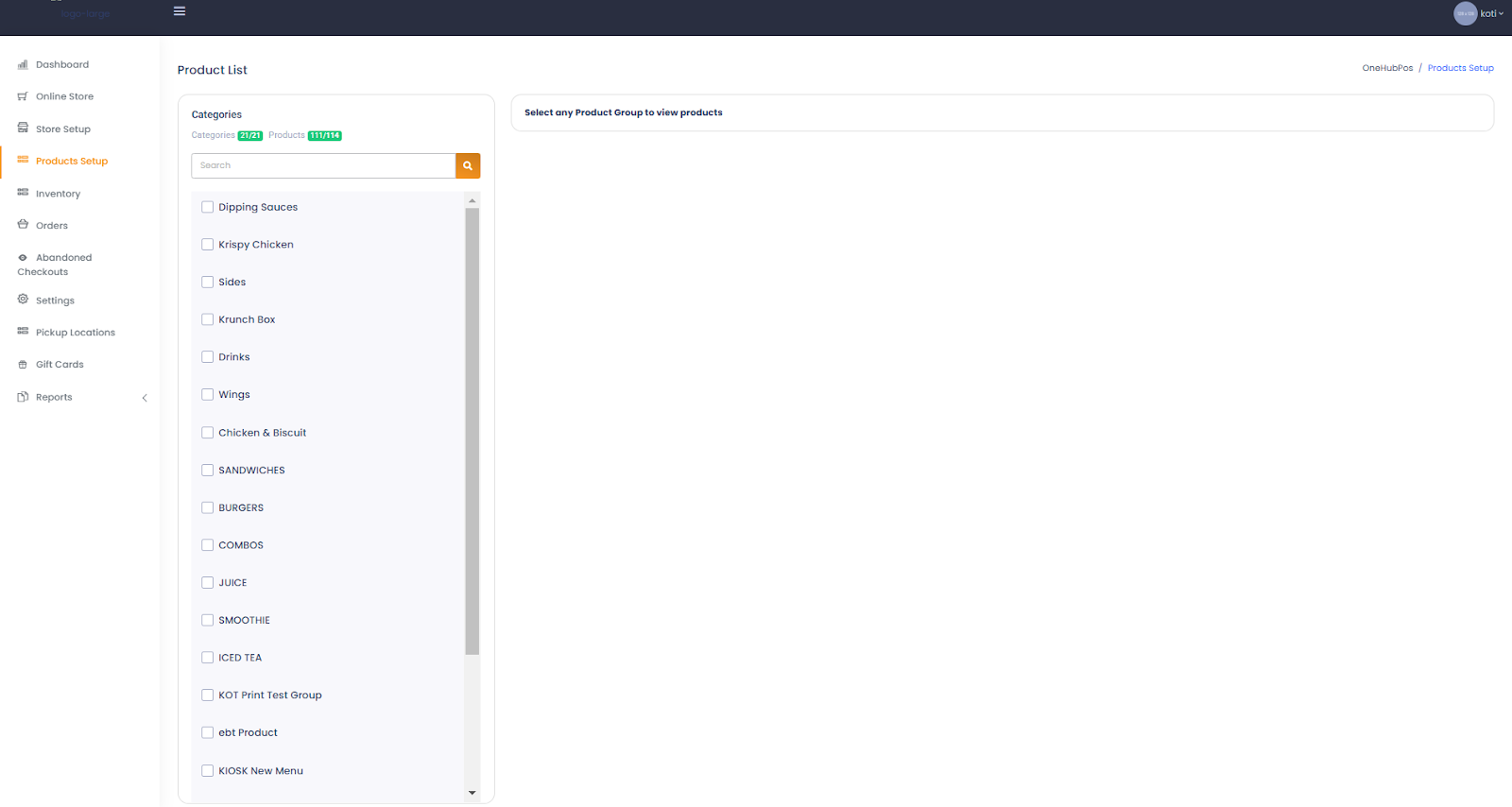
1. Accessing Product Setup
Log in to the admin dashboard.
Navigate to “Products Setup” from the left-side menu.
2. Viewing Product Categories
In the Product List section, you'll see a list of product categories on the left side.
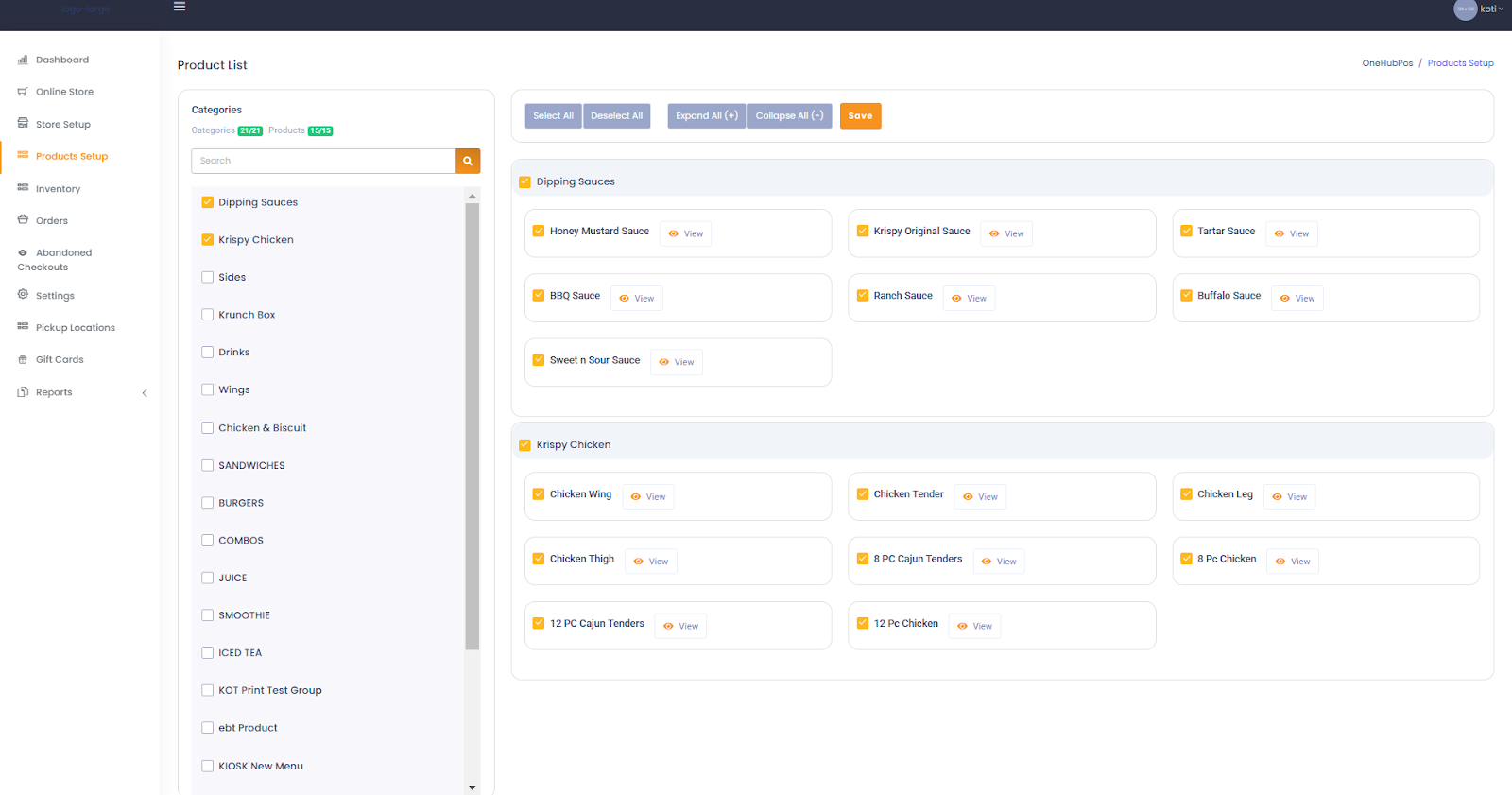
Click on a category (e.g., "Dipping Sauces," "Krispy Chicken") to view available products.
Use the search bar to quickly locate specific categories.
The category count will be displayed to indicate the number of available products.
3. Selecting Products
Once a category is selected, available products within that category will appear on the right side.
To include a product, check the box next to its name.
Use the following options at the top:
Select All: To check all products.
Deselect All: To uncheck all selected products.
Expand All (+) / Collapse All (-): To view or hide product details.
Click “Save” to confirm your selections.
4.Editing Product Details
Click on the “View” button next to a product to edit it.
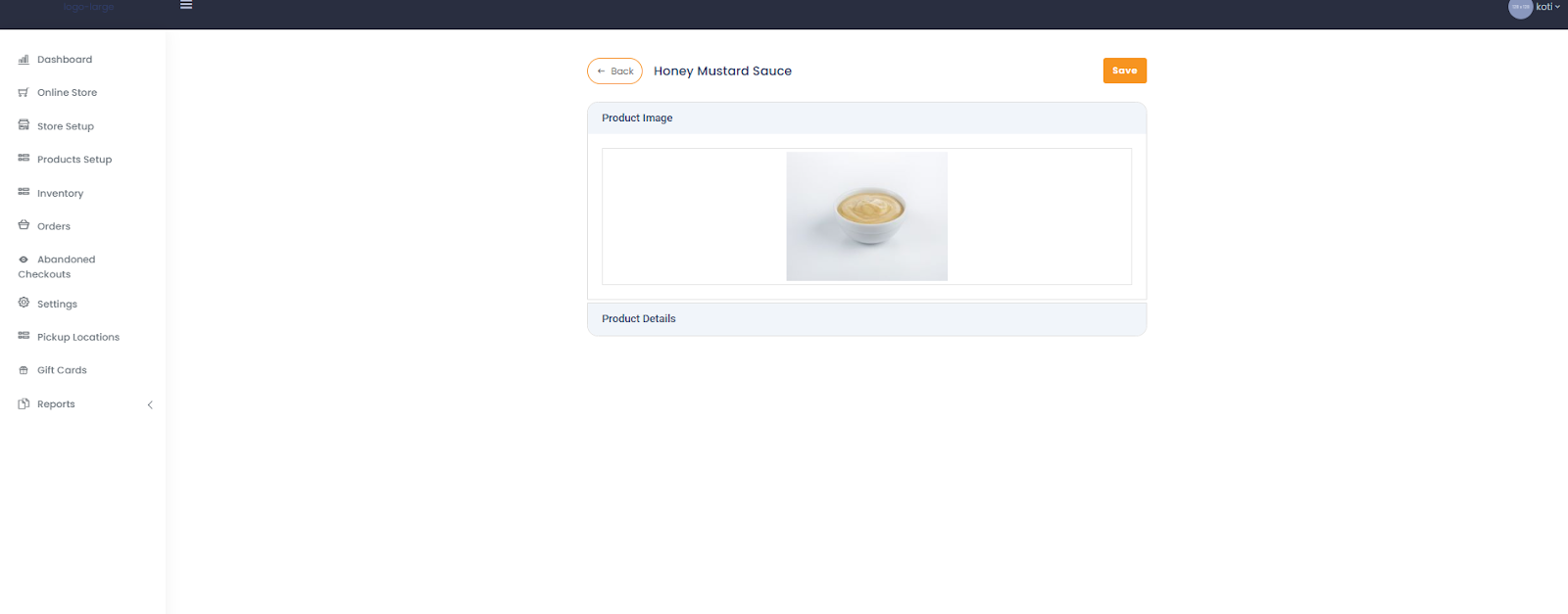
The product details page will open, displaying:
Product Image: Upload or change the product image.
Product Name: Modify the product title.
Price: Set the selling price.
Discount Price: Add a discounted price if applicable.
Menu Position: Define the order of the product in the menu.
Cookbook URL: Enter a link for recipes or additional product details.
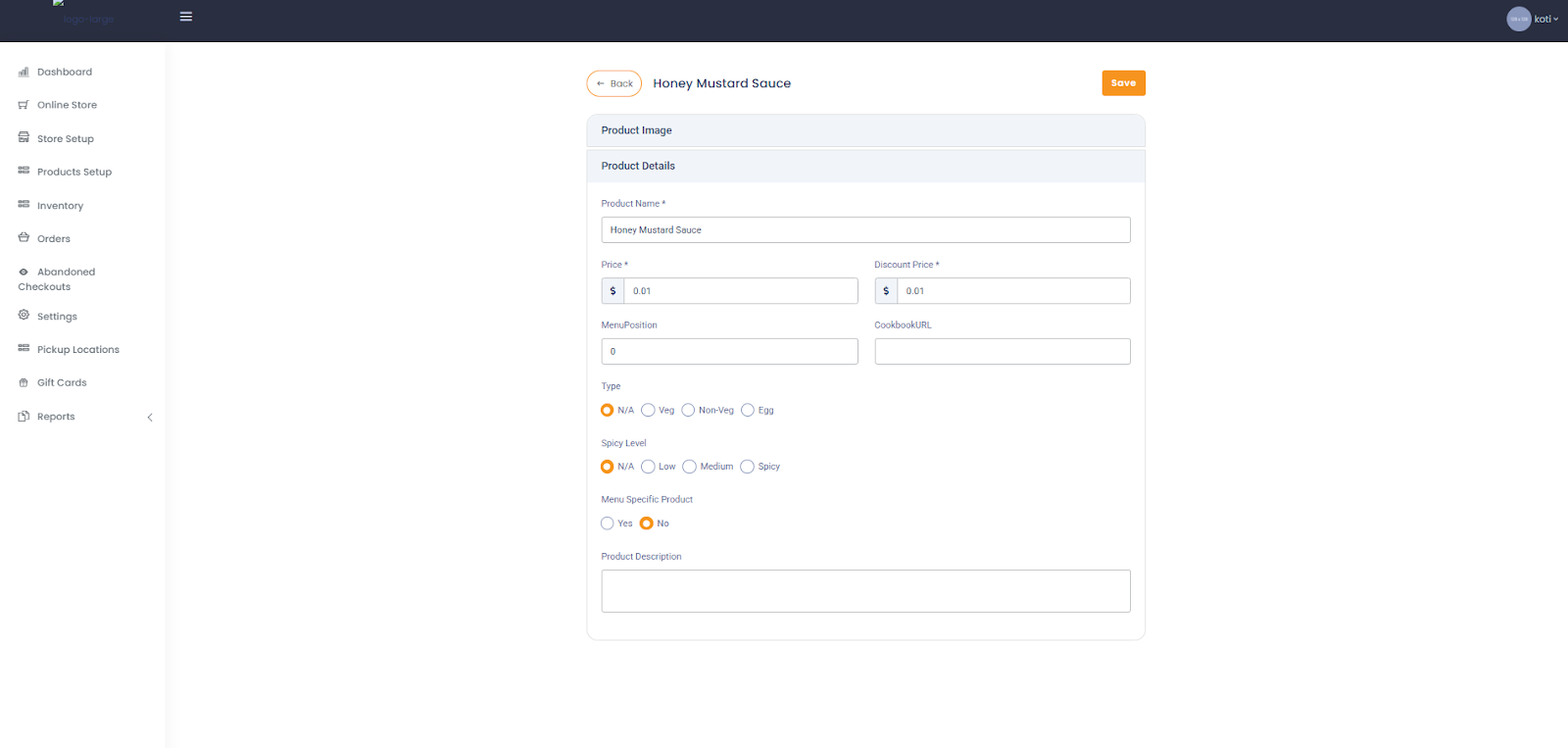
5.Defining Product Attributes
Choose the product type:
Veg, Non-Veg, Egg, or N/A (if not applicable).
Set the spice level:
Options: Low, Medium, Spicy, or N/A.
Mark if the product is menu specific, meaning it will only appear in a specific menu.
6. Adding Product Description
Enter a brief and compelling product description to attract customers.
Ensure it highlights key features such as ingredients, serving size, or special offers.
7. Saving the Product
After entering all product details, click “Save” to update the information.
Click “Back” to return to the product list.
Note - Ensure that your store's product catalog is well-organized, visually appealing, and easy for customers to navigate. Regularly update product details to keep your store fresh and engaging.
Inventory Management Guide
Managing your inventory effectively is crucial to ensuring smooth business operations and avoiding stockouts or overstocking. This guide will walk you through the inventory management process within your online store system.
1. Accessing the Inventory Section
Log in to your admin dashboard.
Navigate to the “Inventory” section from the left-side menu.
2.Using the Search Filter
You can filter inventory data using the available search filters:
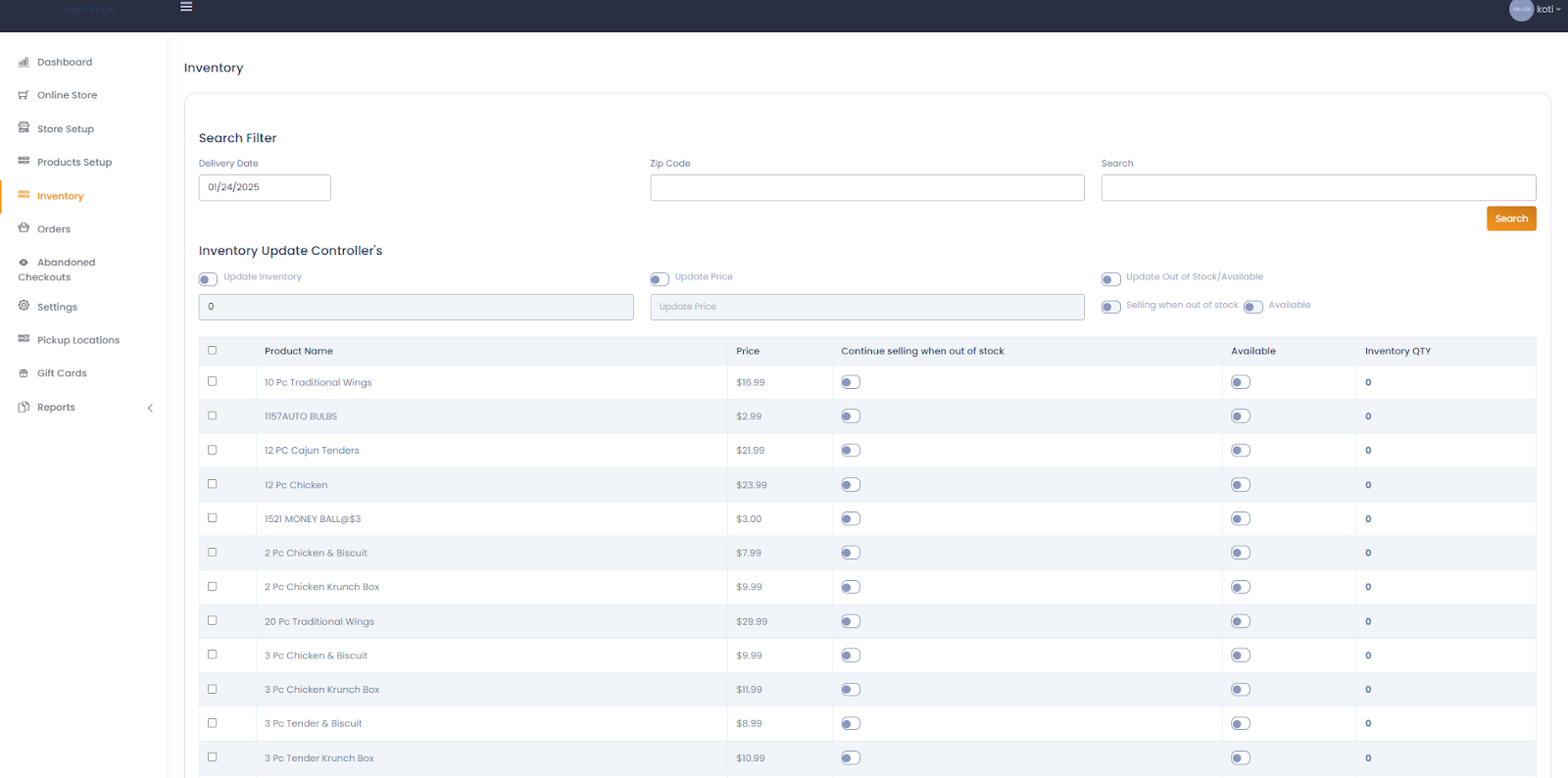
Delivery Date:
Select a specific delivery date to view the inventory for that day.
Zip Code:
Enter a zip code to filter inventory by location.
Search Bar:
Use this field to search for specific products.
Click “Search” to apply the filter and view results.
3.Updating Inventory
The Inventory Update Controller’s section allows for bulk and individual updates:
Toggle “Update Inventory” Button:
Enable it to edit the inventory count for selected products.
Set Inventory Quantity:
Enter the updated inventory count in the provided input box.
Click “Update Inventory” to apply changes.
4.Updating Product Prices
Toggle “Update Price” Button:
Enable this to update the price of selected products.
Enter New Price:
Input the new product price and click “Update Price” to save.
5. Managing Stock Availability
You can control whether products are available for sale when out of stock:
“Continue Selling When Out of Stock” Switch:
Toggle this option to allow customers to purchase even if stock is zero.
“Update Out of Stock/Available” Toggle:
Enable it to manually update the stock status.
Set Availability Status:
Toggle the “Available” button for each product to mark it as available or unavailable.
6.Viewing Product Inventory Details
The product list displays essential inventory details such as:
Product Name: Listed items in your inventory.
Price: Current price of the product.
Availability Status: Whether the product is available or out of stock.
Inventory Quantity: The current stock count for each item.
Select multiple products by checking the boxes beside them for bulk actions.
7. Saving Updates
After making the necessary changes to inventory, price, or availability:
Click “Save” to apply the updates successfully.
Efficient inventory management ensures that your business can meet customer demand, reduce operational costs, and prevent revenue loss due to stock issues. Regularly review and update inventory levels to stay on top of your business needs.
Order Management Guide
Managing orders efficiently is crucial for providing a seamless customer experience. This guide will walk you through how to handle live, future, and processed orders within your online store system.
1. Accessing the Orders Section
Log in to your admin dashboard.
Navigate to the “Orders” section from the left-side menu.

You will see different order status tabs, including:
Live Orders: Ongoing orders that require immediate attention.
Future Orders: Scheduled orders for later delivery.
In Process: Orders currently being prepared.
Ready for Delivery: Orders that are packed and ready for dispatch.
Rejected Orders: Orders that were declined.
All Orders: A complete list of past and current orders.
2. Viewing Live Orders
Click on the “Live Orders” tab to see orders that need immediate processing.
The order list includes key details such as:
Order ID: Unique identifier for each order.
Customer Name: Name of the customer who placed the order.
Phone Number: Contact details for communication.
Email: The customer’s email address.
Item Count: Number of items in the order.
Price: Total amount payable for the order.
You can Accept or Reject an order using the respective buttons.
3. Handling Order Actions
To process an order, click on the “Accept” button:
This will mark the order as accepted and move it to the In Process tab.
If you cannot fulfill the order, click “Reject”, and it will be moved to the Rejected Orders tab.
4. Viewing Order Details
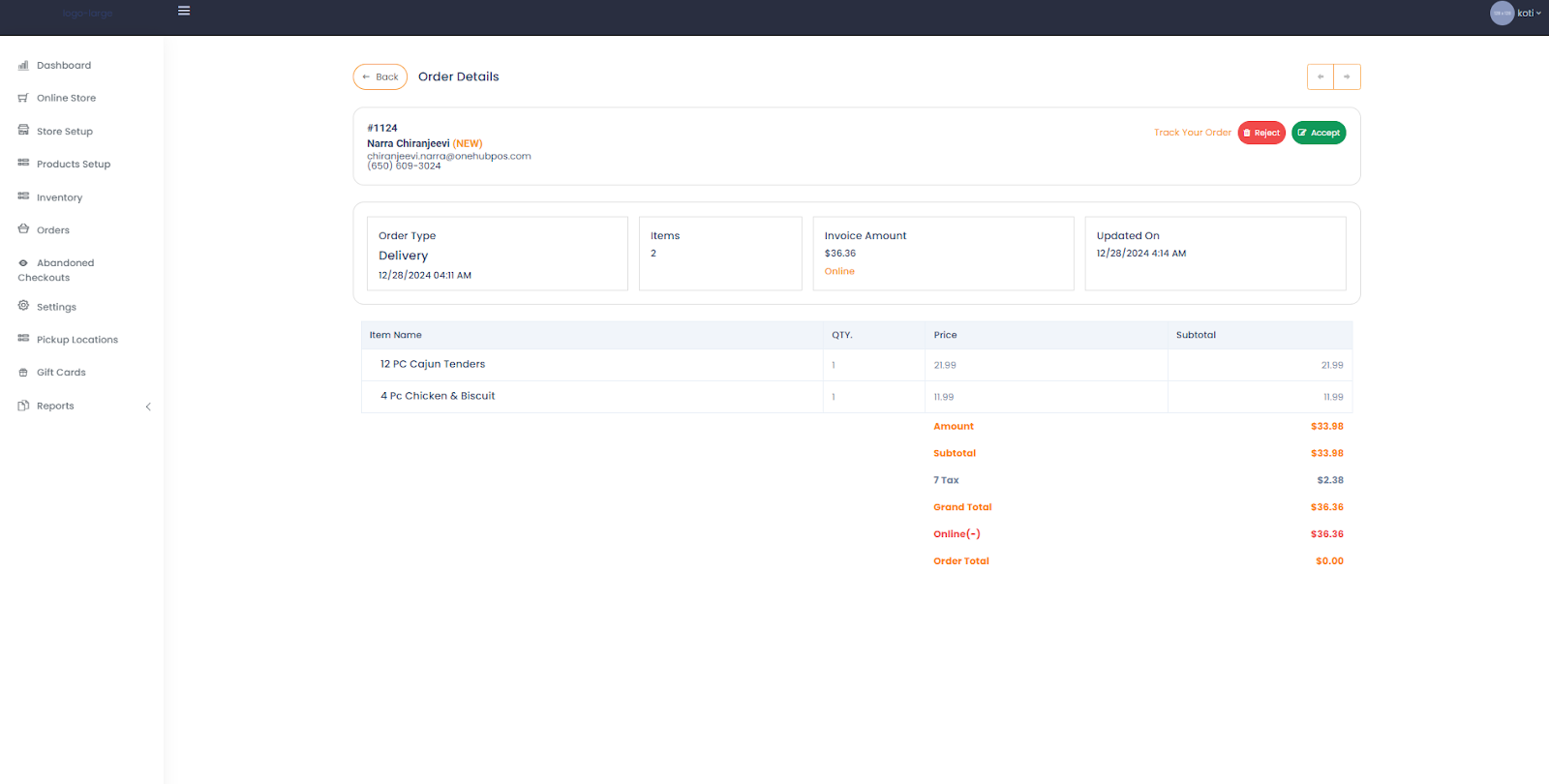
Click on the Order ID to view complete order details.
The order details page includes:
Customer Information: Name, phone, and email.
Order Type: Delivery or Pickup.
Invoice Amount: The total order value.
Updated On: Timestamp of the last update.
A list of ordered items will be displayed, showing:
Item Name
Quantity (QTY)
Price per unit
Subtotal calculations
5.Tracking and Managing Orders
In the order details page, you can track the order status using the “Track Your Order” option.
Accept or reject the order directly from this screen if necessary.
The cost breakdown includes:
Subtotal: Total before tax.
Tax: Applied tax amount.
Grand Total: Final payable amount.
6.Completing an Order
Once the order is ready, update the status to “Ready for Delivery.”
Confirm delivery or pickup when the order is completed.
Efficient order management ensures that customers receive their orders on time and helps businesses maintain high service standards. Regularly monitoring and updating orders will streamline operations and enhance customer satisfaction.Settings Management Guide
This guide will walk you through the different settings available in the online store system to customize and optimize your store's operations.
1. Store Settings
The Store Settings section allows you to manage fundamental options for your store, such as:
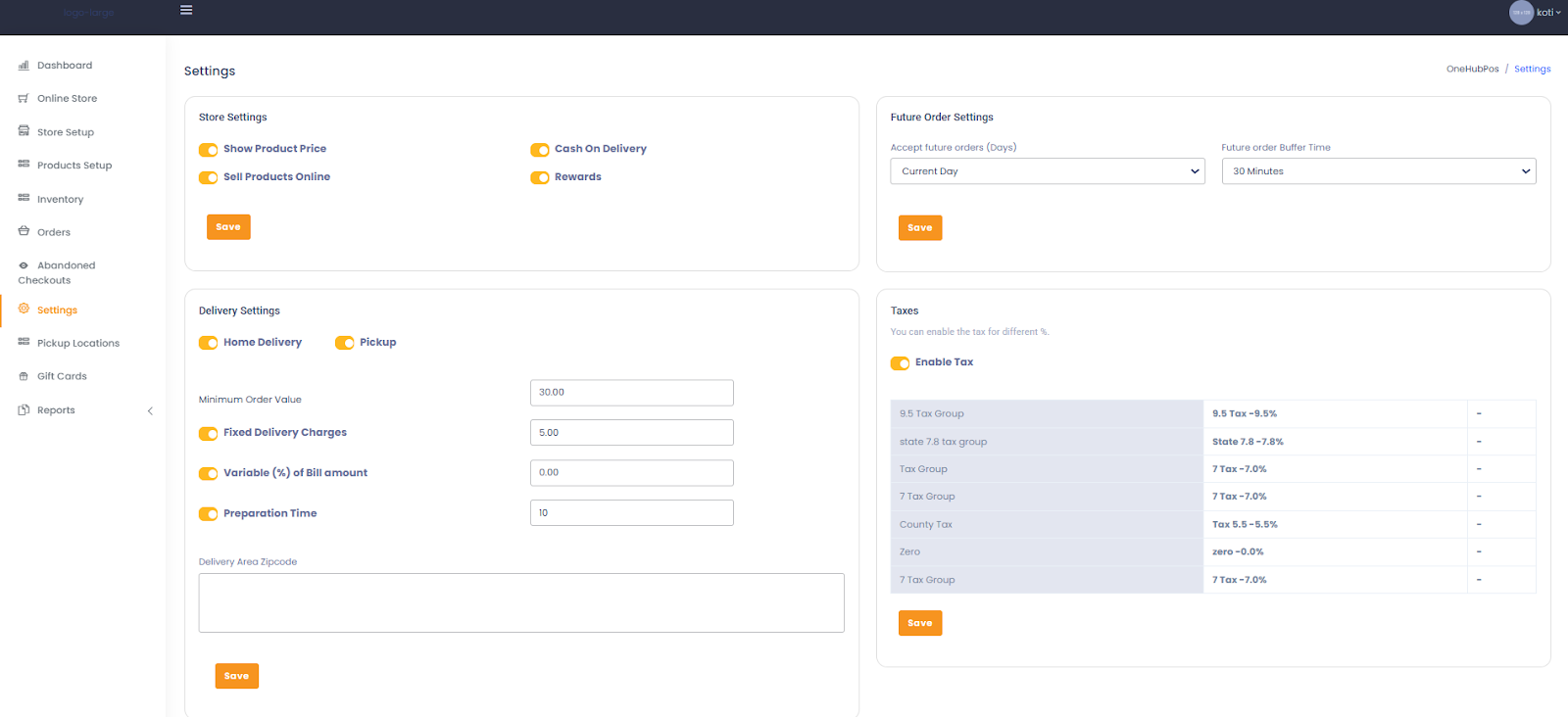
Show Product Price: Toggle to display or hide product prices in your online store.
Sell Products Online: Enable or disable online sales functionality.
Cash On Delivery: Activate/deactivate the option for cash payments upon delivery.
Rewards: Enable a rewards system for customers.
Steps to Configure Store Settings:
Toggle the desired options ON/OFF.
Click the “Save” button to apply changes.
2. Delivery Settings
This section helps configure delivery and pickup options for your store.
Options Available:
Delivery Methods:
Toggle between Home Delivery and Pickup options.
Minimum Order Value:
Set a minimum order amount required for delivery.
Delivery Charges:
Choose between:
Fixed Delivery Charges (Set a flat delivery fee).
Variable (%) of Bill Amount (Charge based on a percentage of the total bill).
Preparation Time:
Define the time required to prepare an order.
Delivery Area Zipcode:
Enter zip codes for delivery eligibility.
Steps to Configure Delivery Settings:
Enter necessary values in respective fields.
Click the “Save” button to update settings.
3. Future Order Settings
Configure options for future orders, such as:
Accept Future Orders:
Select how many days in advance customers can place orders.
Future Order Buffer Time:
Set a time buffer before order processing.
Steps to Configure Future Order Settings:
Use the dropdown menus to select appropriate options.
Click the “Save” button to store changes.
4. Tax Settings
You can define tax rates applicable to your store's products.
Steps to Configure Taxes:
Toggle “Enable Tax” to activate tax calculations.
Select from predefined tax groups, such as:
9.5% Tax Group
State Tax (7.8%)
County Tax (5.5%)
Click “Save” to apply selected tax rates.
5. Sync Options
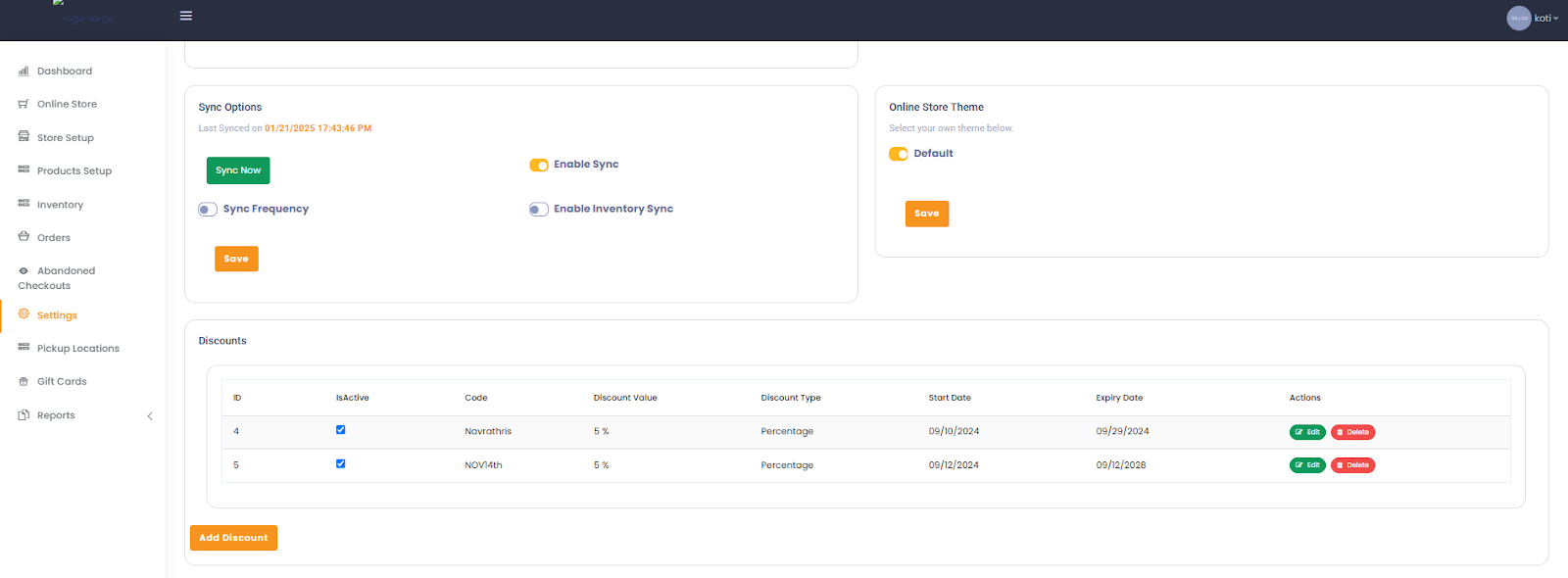
This section allows you to synchronize store data across platforms.
Available Options:
Enable Sync: Turn on auto-sync functionality for store data.
Sync Frequency: Schedule data sync intervals.
Sync Now: Manually trigger synchronization.
Steps to Enable Sync:
Toggle the sync options as needed.
Click “Save” to confirm changes.
6. Online Store Theme
Choose the appearance of your store by selecting an available theme.
Steps to Change Store Theme:
Toggle between available themes.
Click “Save” to apply the selected theme.
7. Discounts Management
This section helps manage promotional discounts applied to orders.
Available Actions:
View existing discount codes with details like:
Discount value
Discount type (percentage/fixed)
Start and expiry dates
Add, edit, or delete discount codes.
Steps to Manage Discounts:
Click “Add Discount” to create a new promo.
Use “Edit” or “Delete” buttons for modifications.

8. Email Templates
Set up automated email notifications for customers.
Steps to Configure Email Templates:
Select the event type (e.g., New Order Creation).
Modify the email subject and template body.
Use placeholders like:
{user_name} for customer name.
{order_products} for a list of purchased items.
{store_name} for the store's name.
Click “Save” to finalize the email settings.
Customizing these settings helps streamline operations, improve customer experience, and maintain consistency in store management. Regularly review and update settings based on business needs.
Managing Pickup Locations in OneHub POS
Managing pickup locations in OneHub POS allows businesses to set up, edit, and organize store pickup addresses for their customers. This guide will walk you through the steps to manage pickup addresses effectively.
Accessing the Pickup Locations Section
Login to the OneHub POS Dashboard.
On the left-hand navigation menu, click on "Pickup Locations."
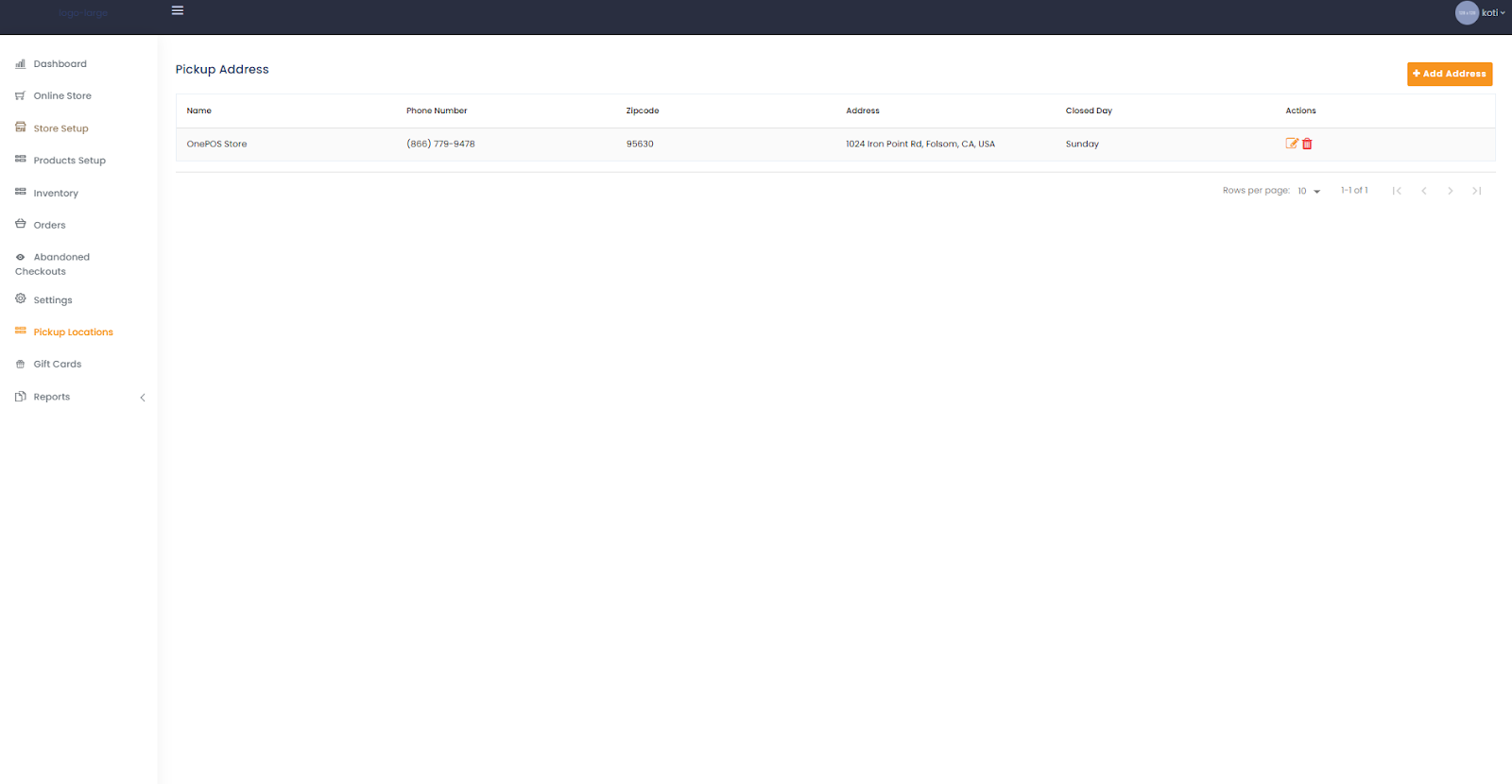
The Pickup Address page will display the list of existing pickup locations with details such as:
Store Name
Phone Number
Zip Code
Address
Closed Day
Actions (Edit/Delete)
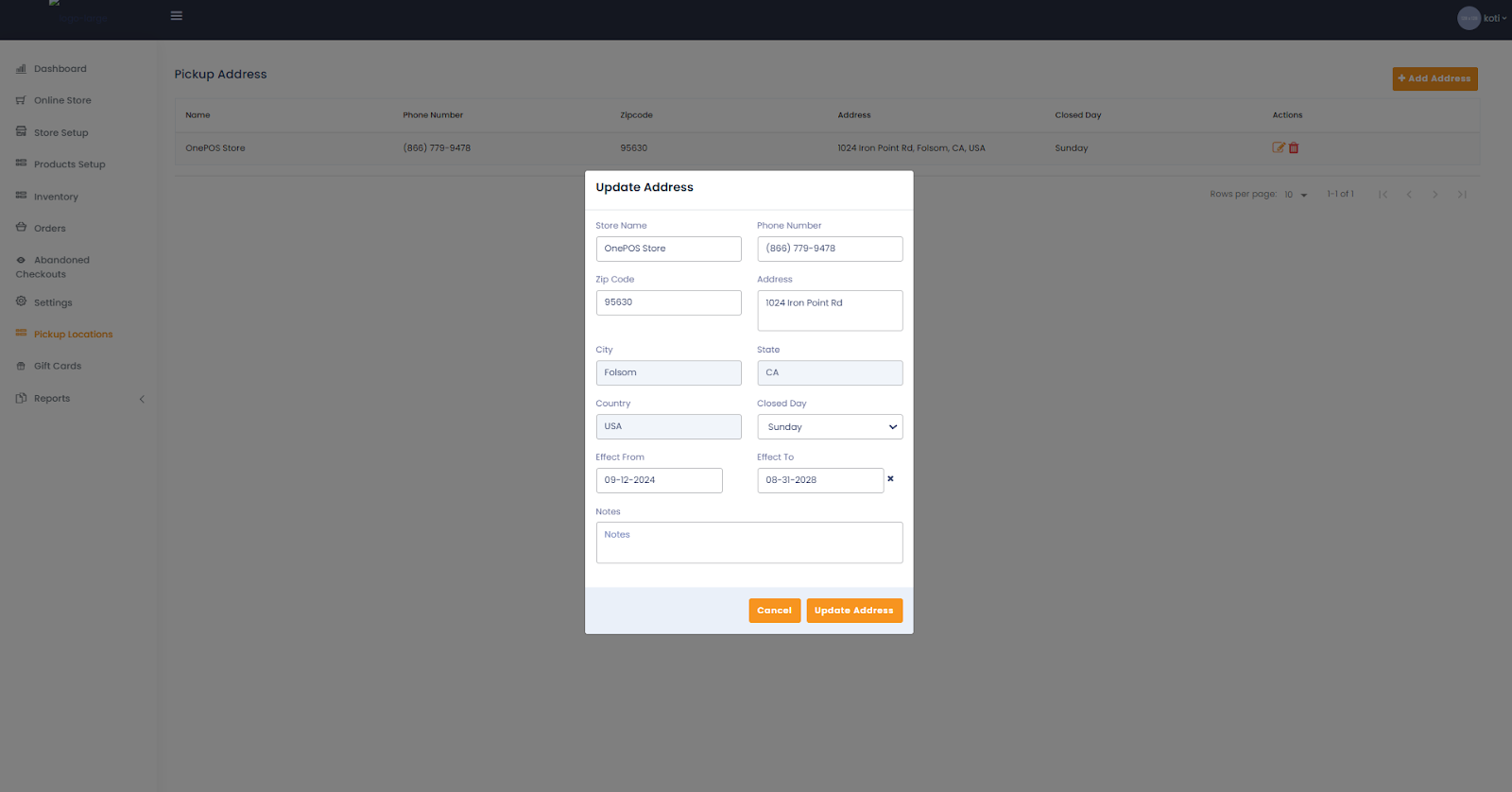
Adding a New Pickup Address
Click the "+ Add Address" button in the top right corner.
Fill in the required fields in the "Add Address" form:
Store Name: Enter the name of the pickup location.
Phone Number: Provide a valid contact number.
Zip Code: Enter the location’s postal code.
Address: Fill in the full pickup address.
City & State: Provide the respective city and state.
Country: Select the country from the dropdown list.
Closed Day: Select the day the location is closed (if applicable).
Effective From & Effective To: Set the validity dates for this pickup location.
Notes: Add any special instructions or notes (optional).
Click the “Save” button to add the new pickup location.
Editing an Existing Pickup Address
Locate the store you want to modify in the list.
Click the edit (pencil) icon in the "Actions" column.
In the "Update Address" form, modify the necessary fields such as:
Store Name, Phone Number, Address, etc.
Click "Update Address" to save the changes.
Deleting a Pickup Address
Find the pickup location you want to remove from the list.
Click the trash bin icon under the "Actions" column.
Confirm the deletion in the pop-up message to permanently remove the address.
Best Practices for Pickup Location Management
Keep the pickup location details up to date to ensure accurate deliveries.
Regularly review and remove outdated or inactive pickup addresses.
Use the "Closed Day" feature to prevent scheduling issues.
Maintain clear notes for internal reference or customer instructions.
Gift Cards Management Guide
Gift cards are a convenient way to offer customers a prepaid balance they can use for future purchases. The Gift Cards section in OneHubPOS allows you to manage issued cards, check balances, and add new gift cards.
Accessing Gift Cards
Navigate to the Gift Cards section from the left-side menu.
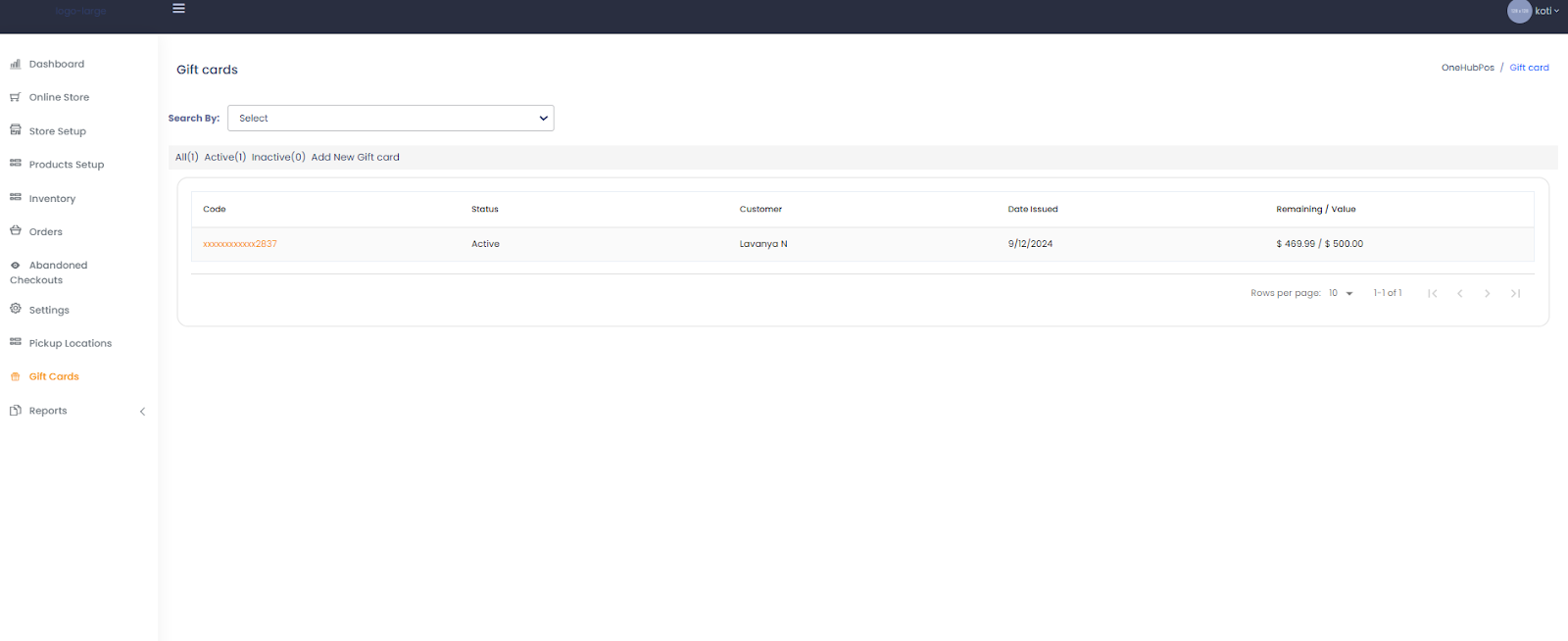
View existing gift cards with details such as:
Code: The unique identifier for the gift card.
Status: Active or Inactive.
Customer: The recipient of the gift card.
Date Issued: The date when the gift card was activated.
Remaining / Value: Displays the current balance and total initial value.
Adding a New Gift Card
Click on "Add New Gift Card" at the top of the page.
Fill in the required details:
Customer Name: The recipient’s name.
Gift Card Code: A unique code for the gift card.
Initial Value: The total amount loaded onto the gift card.
Expiration Date: Set an expiration period if required (optional).
Click "Save" to issue the new gift card.
Searching for Gift Cards
Use the Search By dropdown to filter gift cards based on:
Customer name
Gift card code
Status (Active/Inactive)
Click the "Search" button to view results.
Viewing Gift Card Details
Click on a gift card code to view detailed information.
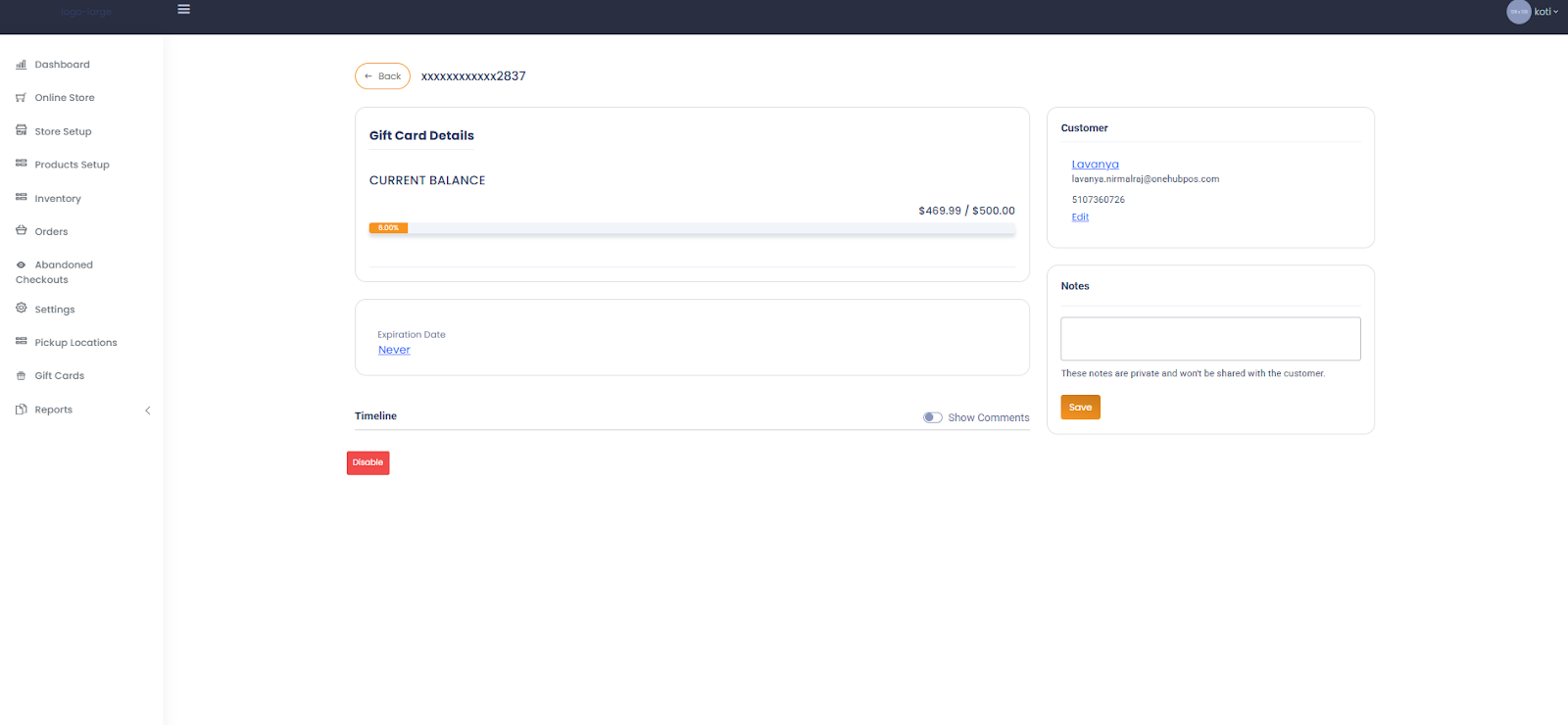
The details page includes:
Current Balance: Shows how much value remains on the card.
Customer Information: Name, email, and contact details.
Expiration Date: Modify if required.
Notes Section: Add internal notes for reference (private, not visible to customers).
To deactivate the gift card, click the "Disable" button.
Editing or Deleting Gift Cards
Click the Edit (pencil icon) next to the gift card to modify details such as balance or expiration.
To remove a gift card, click the Delete (trash icon) button
Tracking Gift Card Usage
Monitor the balance remaining and usage history via the gift card details page.
View the timeline to check when and where the card was redeemed.
Best Practices for Managing Gift Cards
Regularly check expired or low-balance gift cards.
Offer gift cards during promotions to increase customer engagement.
Notify customers of their remaining balances to encourage repeat visits.
TABLE OF CONTENTS
- Store Setup Guide
- Product Setup Guide
- Inventory Management Guide
- Order Management Guide
- 1. Accessing the Orders Section
- 2. Viewing Live Orders
- 3. Handling Order Actions
- 4. Viewing Order Details
- 5.Tracking and Managing Orders
- 6.Completing an Order
- 1. Store Settings
- 2. Delivery Settings
- 3. Future Order Settings
- 4. Tax Settings
- 5. Sync Options
- 6. Online Store Theme
- 7. Discounts Management
- 8. Email Templates
- Managing Pickup Locations in OneHub POS
- Gift Cards Management Guide
- Accessing Gift Cards
- Adding a New Gift Card
- Searching for Gift Cards
- Viewing Gift Card Details
- Editing or Deleting Gift Cards
- Tracking Gift Card Usage
- Best Practices for Managing Gift Cards
- TABLE OF CONTENTS
- Store Setup Guide
- Product Setup Guide
- Inventory Management Guide
- Order Management Guide
- 1. Accessing the Orders Section
- 2. Viewing Live Orders
- 3. Handling Order Actions
- 4. Viewing Order Details
- 5.Tracking and Managing Orders
- 6.Completing an Order
- 1. Store Settings
- 2. Delivery Settings
- 3. Future Order Settings
- 4. Tax Settings
- 5. Sync Options
- 6. Online Store Theme
- 7. Discounts Management
- 8. Email Templates
- Managing Pickup Locations in OneHub POS
- Gift Cards Management Guide
- Accessing Gift Cards
- Adding a New Gift Card
- Searching for Gift Cards
- Viewing Gift Card Details
- Editing or Deleting Gift Cards
- Tracking Gift Card Usage
- Best Practices for Managing Gift Cards
- TABLE OF CONTENTS
- Store Setup Guide
- Product Setup Guide
- Inventory Management Guide
- Order Management Guide
- 1. Accessing the Orders Section
- 2. Viewing Live Orders
- 3. Handling Order Actions
- 4. Viewing Order Details
- 5.Tracking and Managing Orders
- 6.Completing an Order
- 1. Store Settings
- 2. Delivery Settings
- 3. Future Order Settings
- 4. Tax Settings
- 5. Sync Options
- 6. Online Store Theme
- 7. Discounts Management
- 8. Email Templates
- Managing Pickup Locations in OneHub POS
- Gift Cards Management Guide
Was this article helpful?
That’s Great!
Thank you for your feedback
Sorry! We couldn't be helpful
Thank you for your feedback
Feedback sent
We appreciate your effort and will try to fix the article