Kiosk is a self-service ordering platform tailored for QSR and Fast Casual. It enables customers to place orders independently at kiosk stations, avoiding queues at counters, streamlining the ordering process and enhancing customer convenience.
About this Document
This guide provides a detailed overview of the kiosk application’s user flow, features, and functionality. Each section outlines step-by-step instructions, ensuring an easy understanding of the ordering process and how each feature supports a seamless user experience.
Table of Contents
1. Kiosk Activation Guide
2. Placing an Order
3. Payment Process
4. Clearing the cart
Kiosk Activation Guide
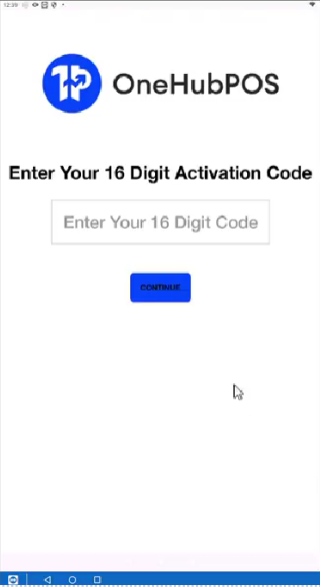
1.Enter Activation Code
On the kiosk screen, input the 16-digit activation code provided during setup.
Tap Continue to proceed.
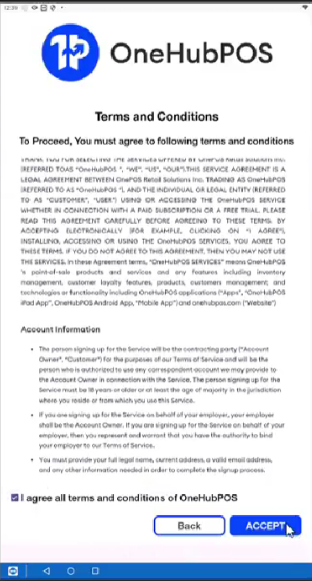
2. Accept Terms and Conditions
Review the Terms and Conditions displayed on the screen.
Check the box to agree and click Accept.
Placing an Order
1. Select Order Type
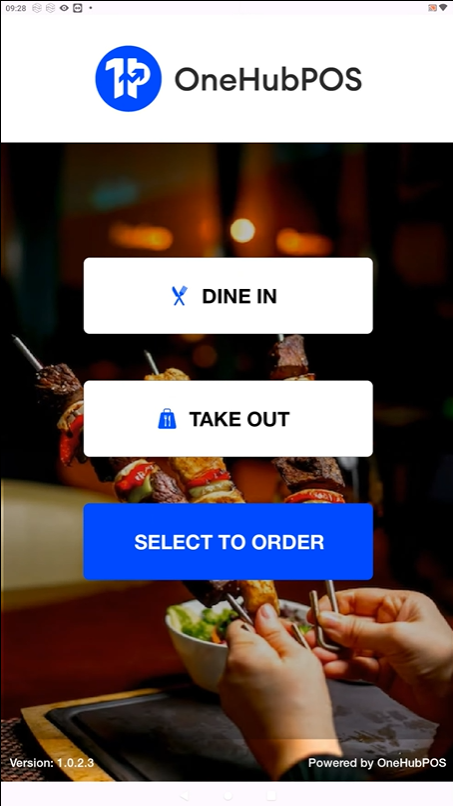
Choose between Dine In or Take Out on the home screen.
Select the Order type.
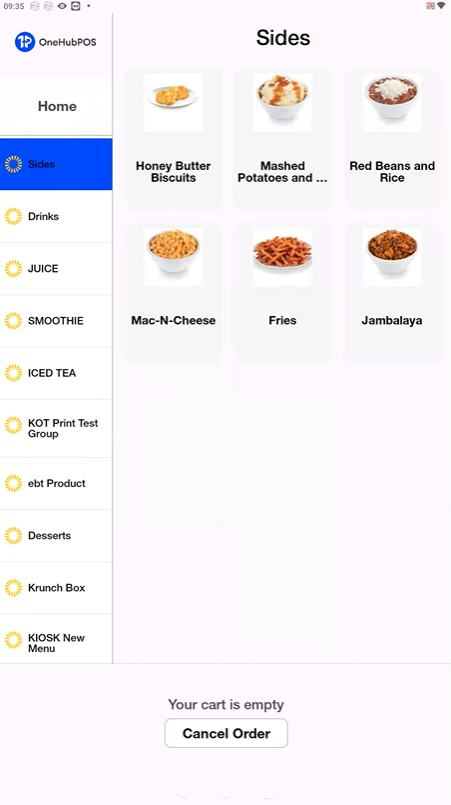
2. Browse and Select Items
Navigate through the categories (e.g., Sides, Drinks, Desserts) using the sidebar or main screen.
Select the desired items by tapping on them and choosing the quantity.
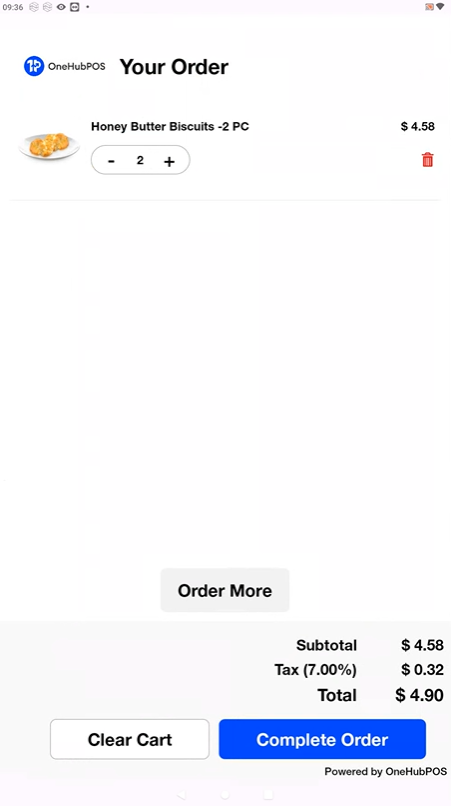
3. Review Your Cart
View selected items in the cart.
Modify quantities or remove items if needed.
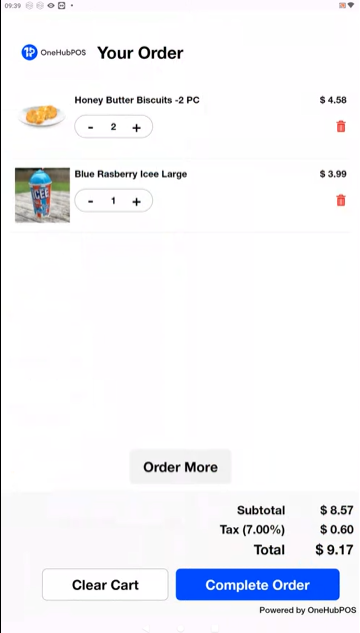
Tap Complete Order when ready.
3. Payment Process
1. Choose Payment Method
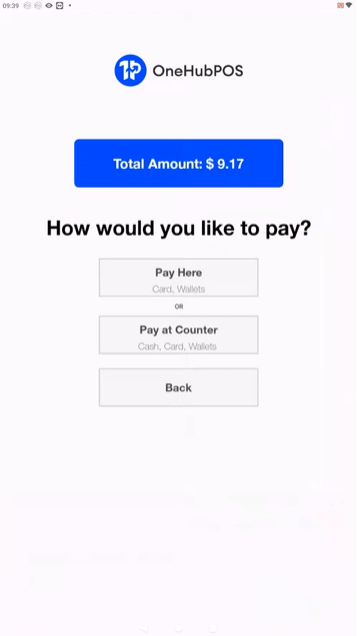
On the payment screen, select one of the following:
Pay Here for card or digital wallet payments.
Pay at Counter for cash or other payment methods.
2.Confirm Payment
If choosing Pay Here, follow the on-screen prompts to complete the transaction.
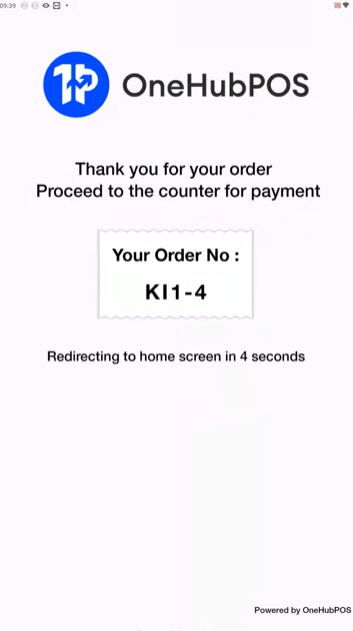
If selecting Pay at Counter, proceed to the counter and provide your order number for payment.
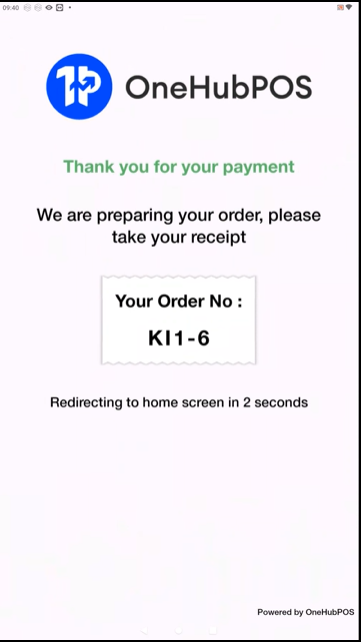
3. Order Confirmation
Once the payment is completed, the screen will display your order number.
The kiosk will be redirected to the home screen for the next customer.
4. Clearing the Cart
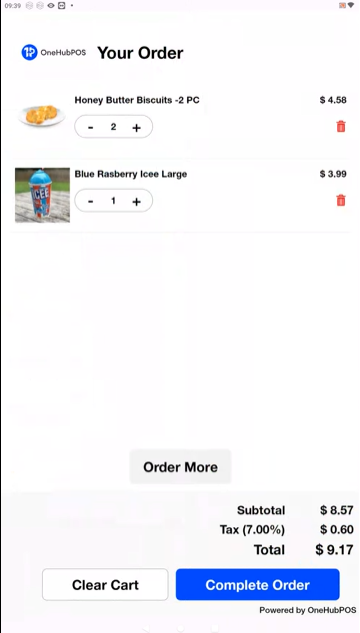
1. Access the Cart
After adding items to the cart, navigate to the cart page to review your selections.
2. Clear the Cart
Tap the Clear Cart button located at the bottom of the screen.
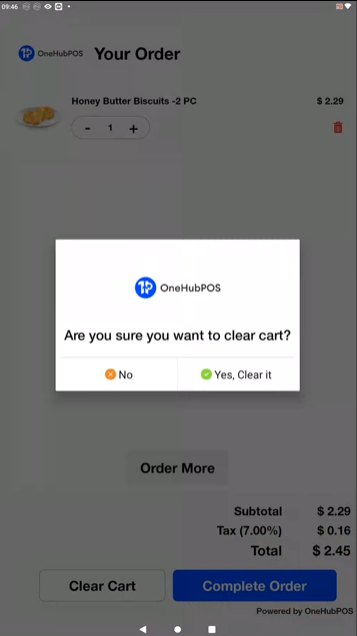
A confirmation popup will appear asking, “Are you sure you want to clear the cart?”
3. Confirm or Cancel
To clear the cart, tap Yes, Clear It.
If you decide not to clear the cart, tap No to return to the cart page.
4. Return to Home
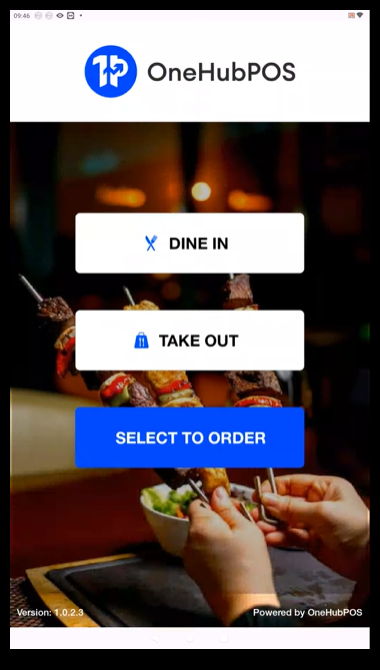
Once the cart is cleared, you will be redirected to the home screen, where you can start a new order.
Was this article helpful?
That’s Great!
Thank you for your feedback
Sorry! We couldn't be helpful
Thank you for your feedback
Feedback sent
We appreciate your effort and will try to fix the article