The Kitchen Display System (KDS) is a digital solution designed to optimize kitchen workflows by replacing traditional paper tickets with interactive displays. It enhances order management, reduces errors, and ensures seamless communication between the kitchen and front-of-house teams.
About this Document
This guide provides a comprehensive overview of the KDS, covering its features, functionalities, and benefits. It includes step-by-step instructions to help users navigate the system and efficiently manage orders in a fast-paced kitchen environment.
How to Read This Document
To quickly find the information you need, you can use the following methods:
Search Function: Use the search function (Ctrl + F) and type related keywords. For example:
Search " Add New Store " to create a new store
Search "Add product" to add a new product for your store.
Clickable Table of Contents: Navigate through the document by clicking on any section in the Table of Contents to jump directly to the topic you’re looking for.
These features make it easy to locate specific information and improve your overall experience with the document.
Table of Contents
Logging into the Kitchen Display System (KDS)
Logging into the Kitchen Display System (KDS)
1.Locate the KDS App
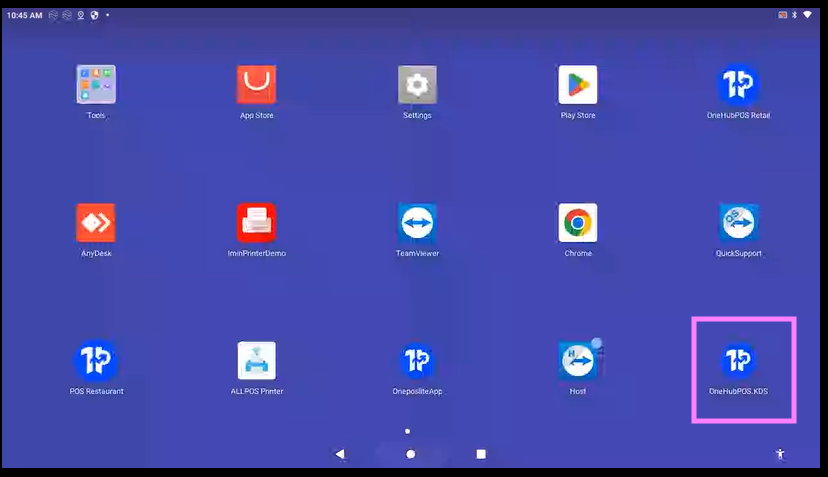
On the device's home screen, find the KDS icon.
Tap the icon to launch the application.
2. Select a User
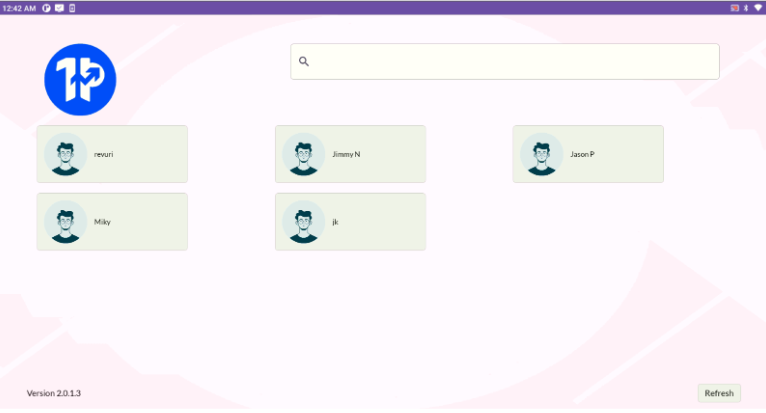
On the login screen, choose your profile from the available list of users.
Use the search bar to quickly find your profile if there are many users.
3. Enter PIN
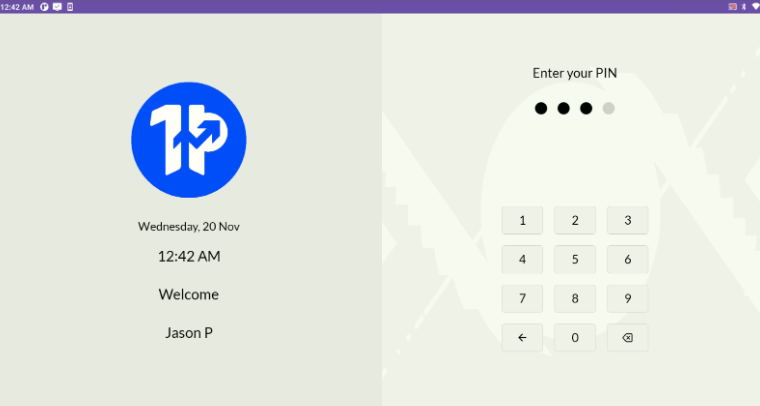
Once you select your profile, enter your secure PIN on the next screen.
Tap the Enter button to log in.
4. Access the Dashboard
- After logging in, you will be redirected to the KDS dashboard.
- The dashboard displays all the pending orders.
- Viewing and Managing Orders
1. View Active Orders
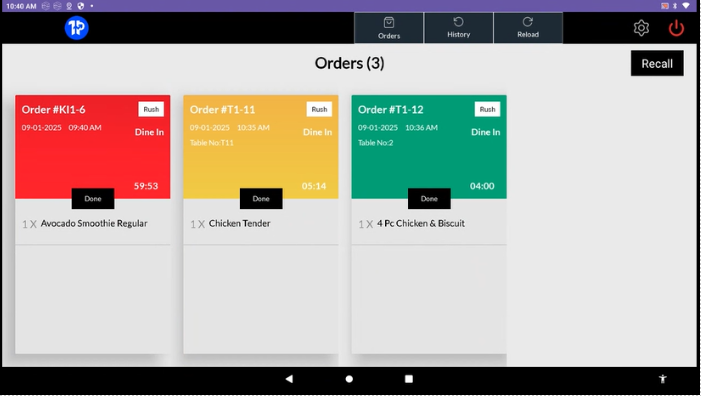
The dashboard shows a card for each active order, color-coded by priority or timing:
Red: Urgent (e.g., overdue).
Yellow: Moderate urgency.
Green: Recently received orders.
2. Update Order Status
Tap the Done button on an order card to mark it as completed.
The order will be removed from the active list and archived in the history section.
Viewing Order History
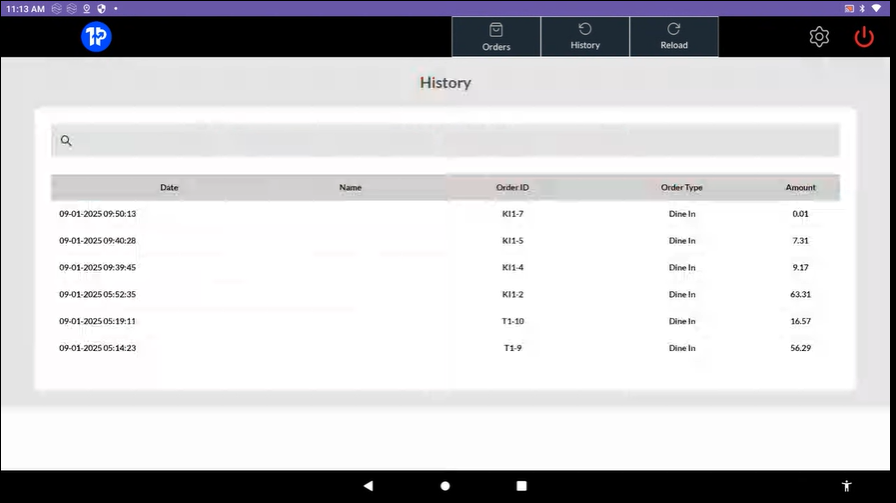
1. Navigate to the History Tab
From the KDS dashboard, tap on the History tab located at the top of the screen.
2. Explore Past Orders
The History tab displays a list of completed orders with the following details:
Date: The timestamp of when the order was completed.
Name: The customer's name associated with the order.
Order ID: A unique identifier for each order.
Order Type: Indicates whether the order was Dine In or another service type.
Amount: The total amount charged for the order.
3. Use the Search Feature
Use the search bar at the top to quickly locate a specific order by entering keywords such as Order ID or customer name.
4. Refresh History
Tap the Reload button at the top of the screen to ensure the order history is updated with the latest information.
Reloading Data
1. Access the Reload Function
On the KDS dashboard, locate the Reload button at the top of the screen.
2. Tap Reload
Tap the Reload button to refresh the data on the KDS.
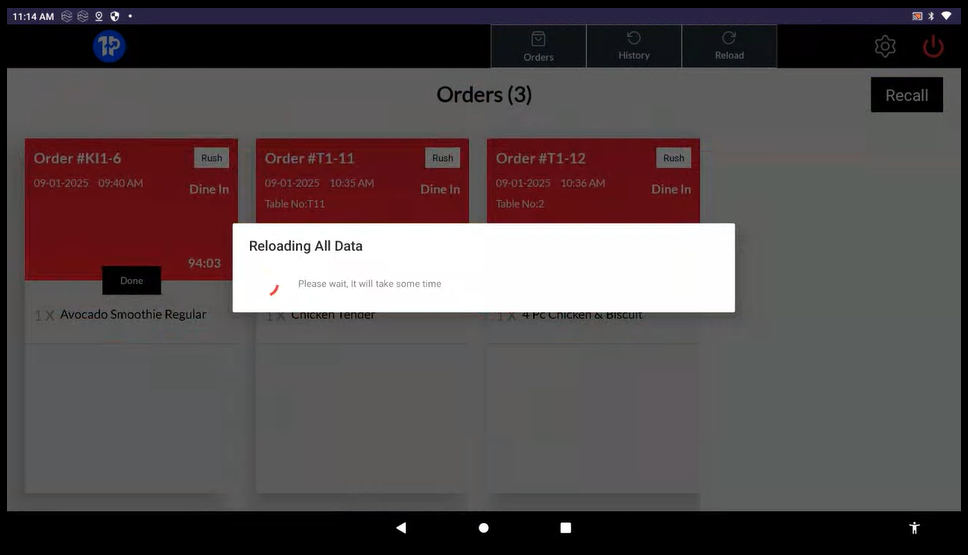
A loading screen will appear with the message: "Reloading All Data - Please wait, it will take some time."
3. Wait for Data to Update
Allow the system a moment to update all order information.
Once the reload is complete, the updated dashboard with the latest orders will be displayed.
4. Verify Data
Ensure all active and completed orders are updated after the reload process.
Configuring Timer Settings
1. Access Settings
On the KDS dashboard, tap the Settings icon (usually a gear icon) at the top right corner of the screen.
2. Adjust Time Limits
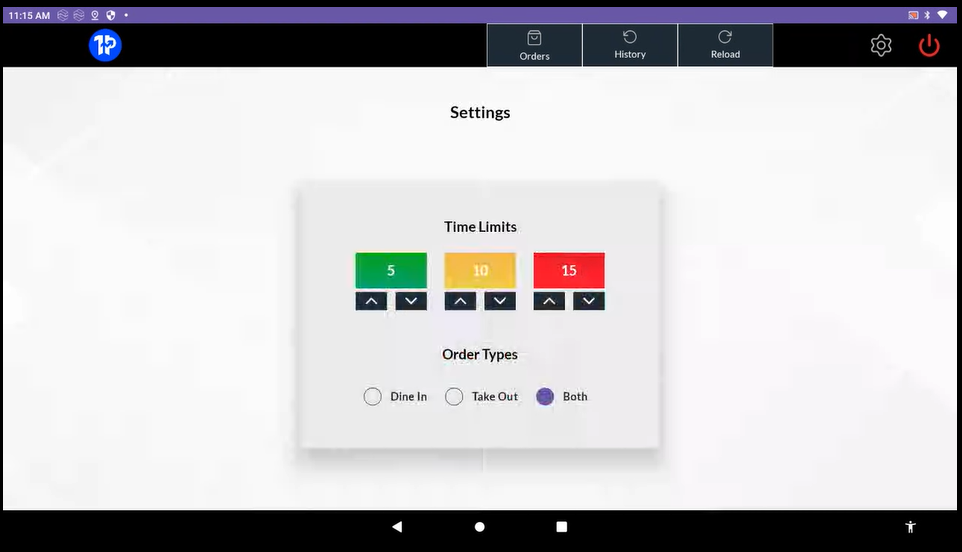
This time management is to understand for how long the order has been landed to the KDS.
In the Time Limits section:Green: Set the time limit for low-priority orders (e.g., 5 minutes by default).
Yellow: Set the time limit for medium-priority orders (e.g., 10 minutes by default).
Red: Set the time limit for high-priority orders (e.g., 15 minutes by default).
Use the up and down arrows to adjust the time values as needed.
3. Select Order Types
In the Order Types section:
Choose between Dine In, Take Out, or Both depending on your kitchen’s service setup.
4. Save Changes
Once the desired settings are configured, exit the settings menu. The changes will be applied automatically.
Logging Out of KDS
1. Locate the Logout Button
On the KDS dashboard, find the Logout button (red power icon) at the top-right corner of the screen.
2. Initiate Logout
Tap the Logout button.

A confirmation popup will appear asking, "Are you sure you want to Logout?"
3. Confirm Logout
To proceed with logging out, tap Yes.
If you do not wish to logout, tap No to return to the dashboard.
4. Return to Login Screen
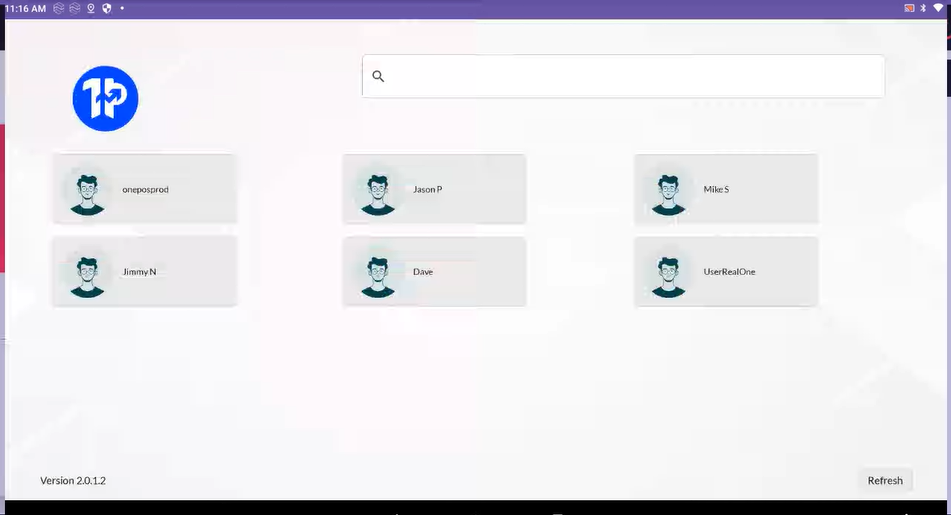
After confirming, the system will log you out and return to the user selection screen where you can log in again if needed.
Was this article helpful?
That’s Great!
Thank you for your feedback
Sorry! We couldn't be helpful
Thank you for your feedback
Feedback sent
We appreciate your effort and will try to fix the article